
Virtual desktops
Authorized users can access a Windows desktop through the Omnissa client for office software, research tools, and approved cluster storage.
Apply before connecting
Virtual desktop access is not activated automatically with a computing account. Complete the resource application form, select or specify “虚拟桌面” (virtual desktop), obtain your group leader's approval, and wait for administrator activation.
Access points
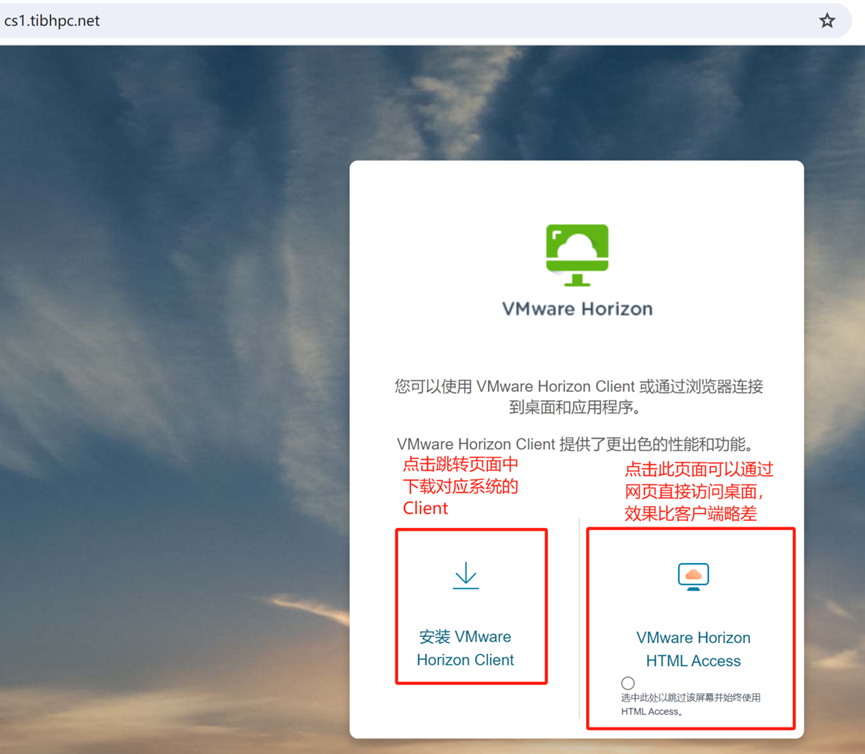
Use https://cs1.tibhpc.net as the primary endpoint, or https://cs2.tibhpc.net if it is unavailable. Both provide the same service.
Only approved users can sign in. If you also have a computing account, use the same credentials; desktop-only users should follow the activation notice from the administrator.
Install and connect
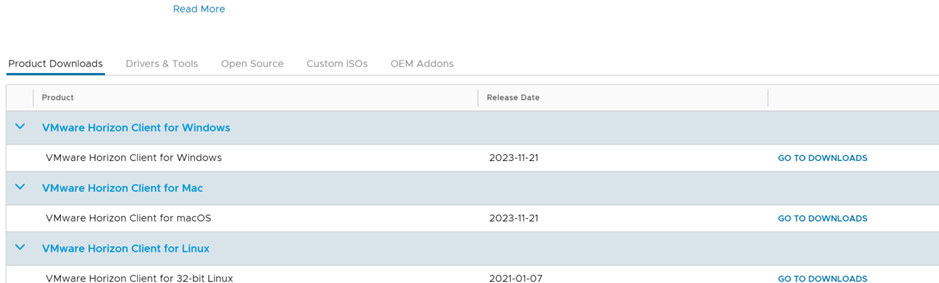
Open either endpoint in a browser, select the client for your operating system, and install Omnissa.
Add the primary server:
cs1.tibhpc.netOr the backup server:
cs2.tibhpc.net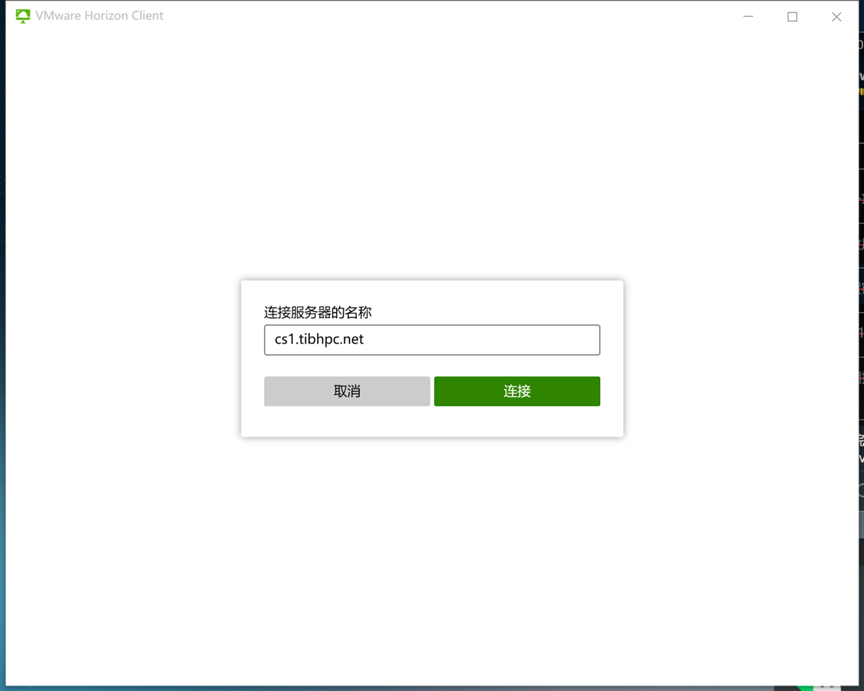
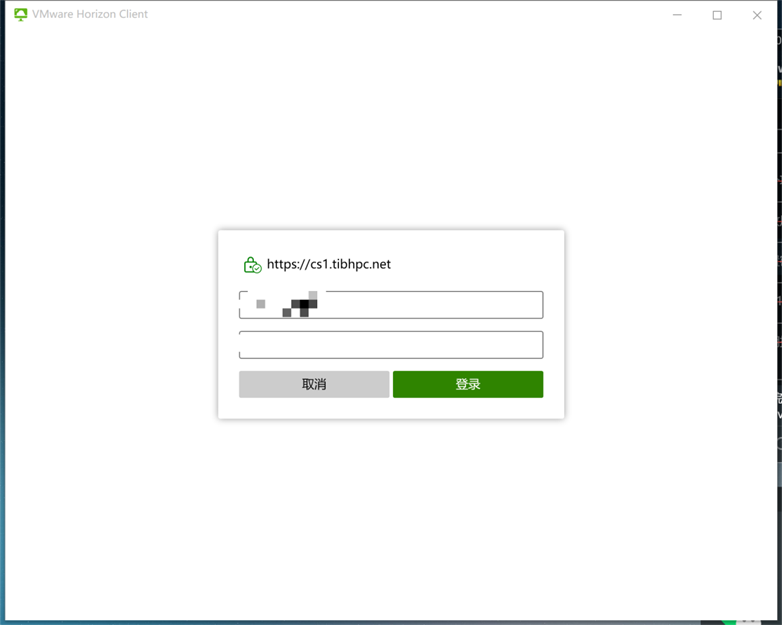
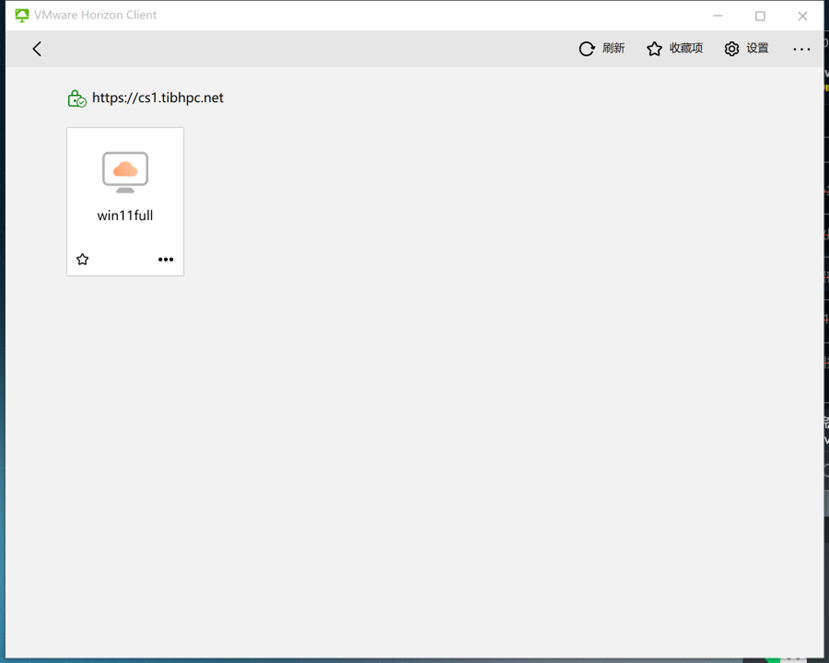
Enter your activated username and password. Confirm that an assigned virtual machine appears, then double-click it to open the desktop.
Access cluster storage
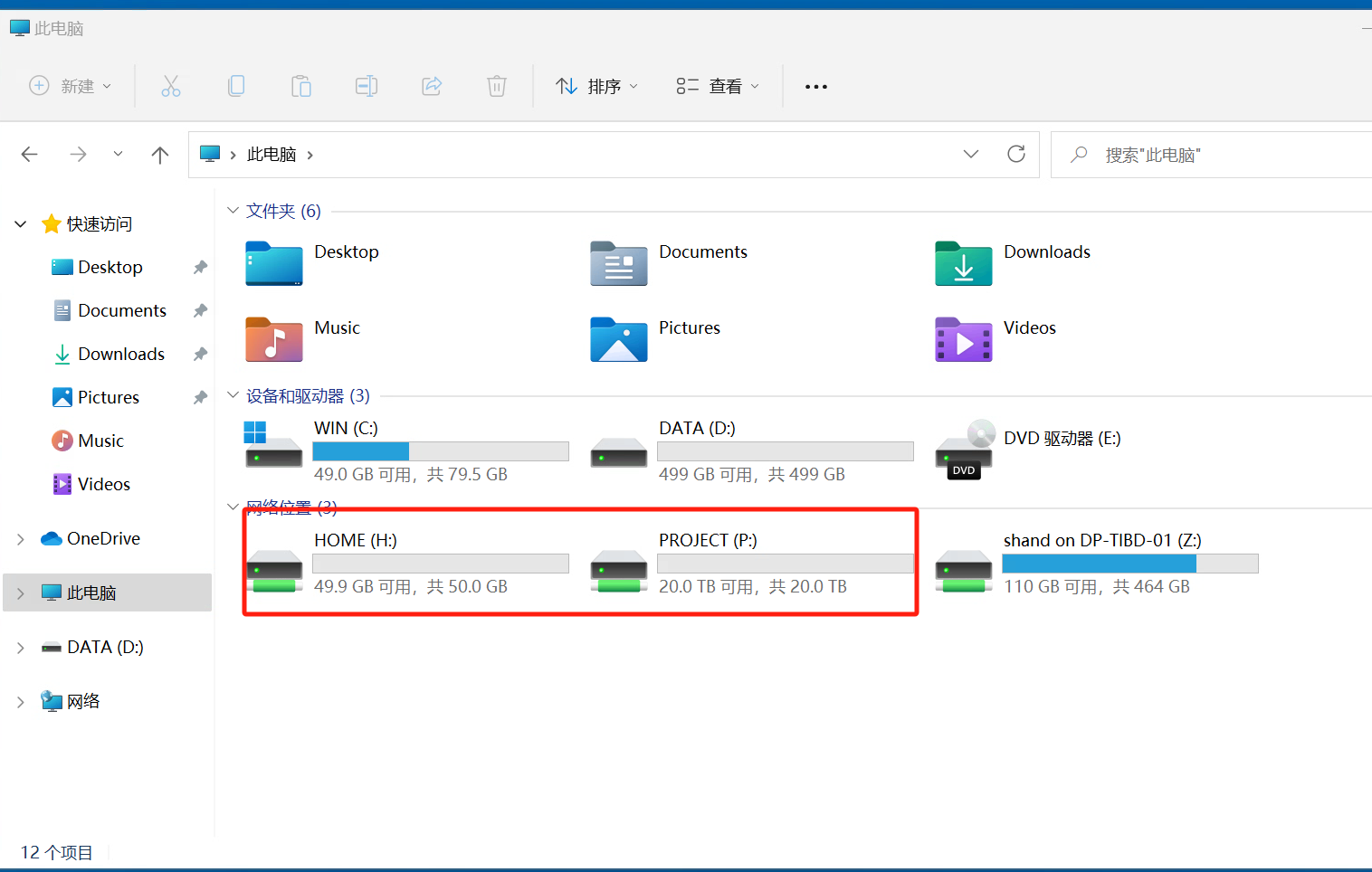
For users with both computing and desktop permissions, administrators normally map Home and project storage as Windows network drives. Skip this section if you have no cluster-storage entitlement.
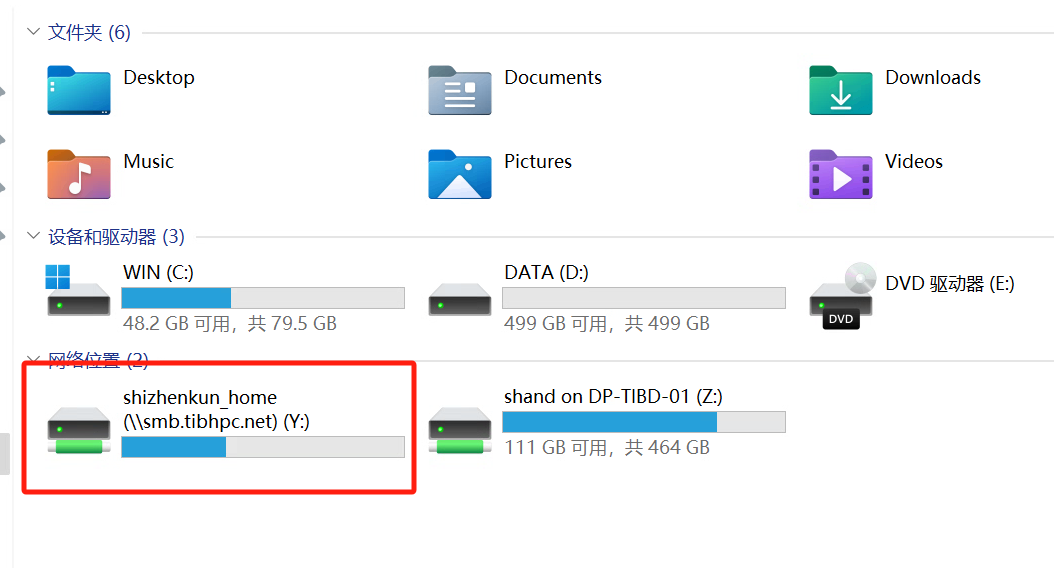
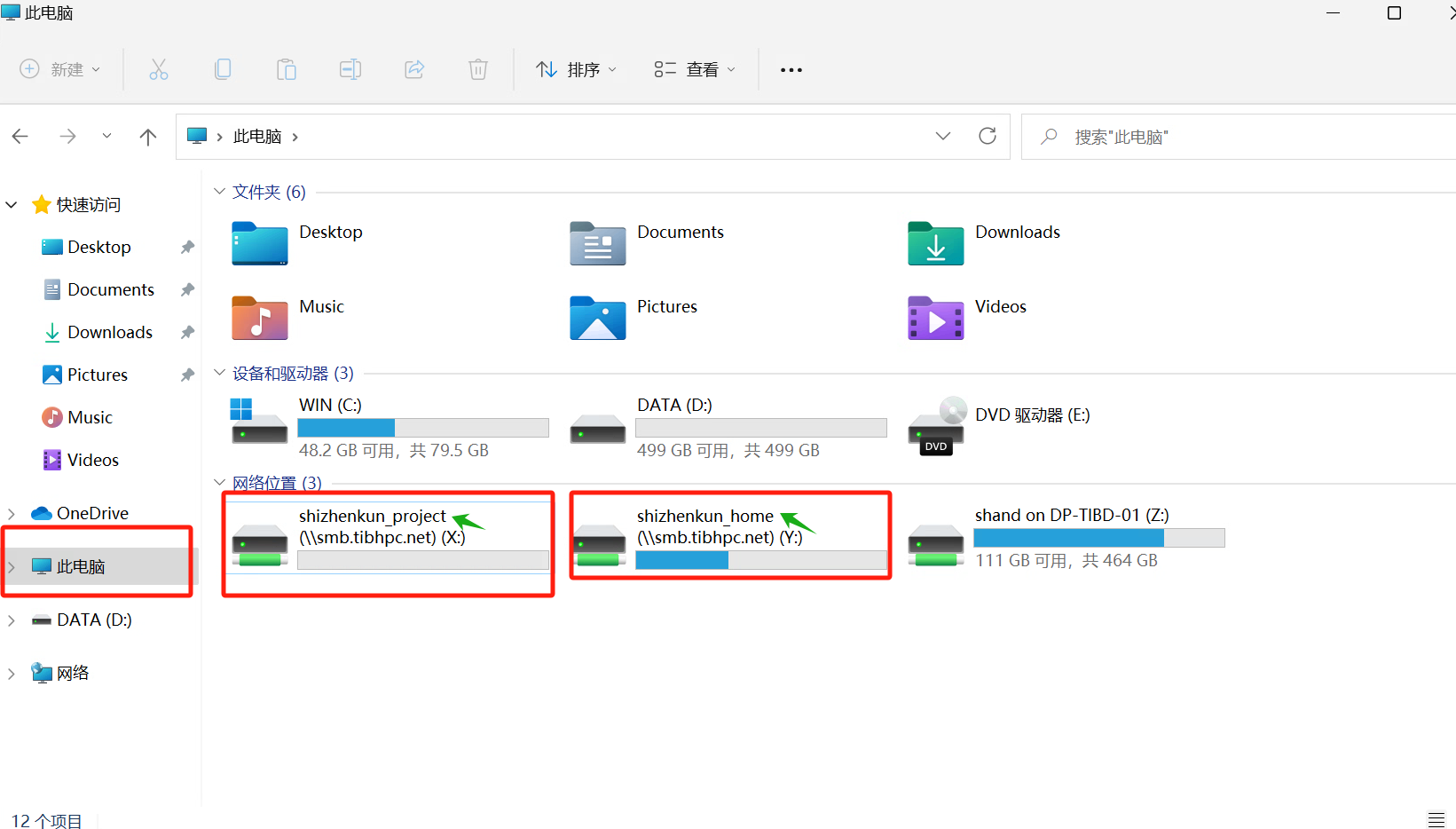
Open This PC (此电脑) and check Network locations (网络位置) for your personal and project drives.
Missing drives on first login
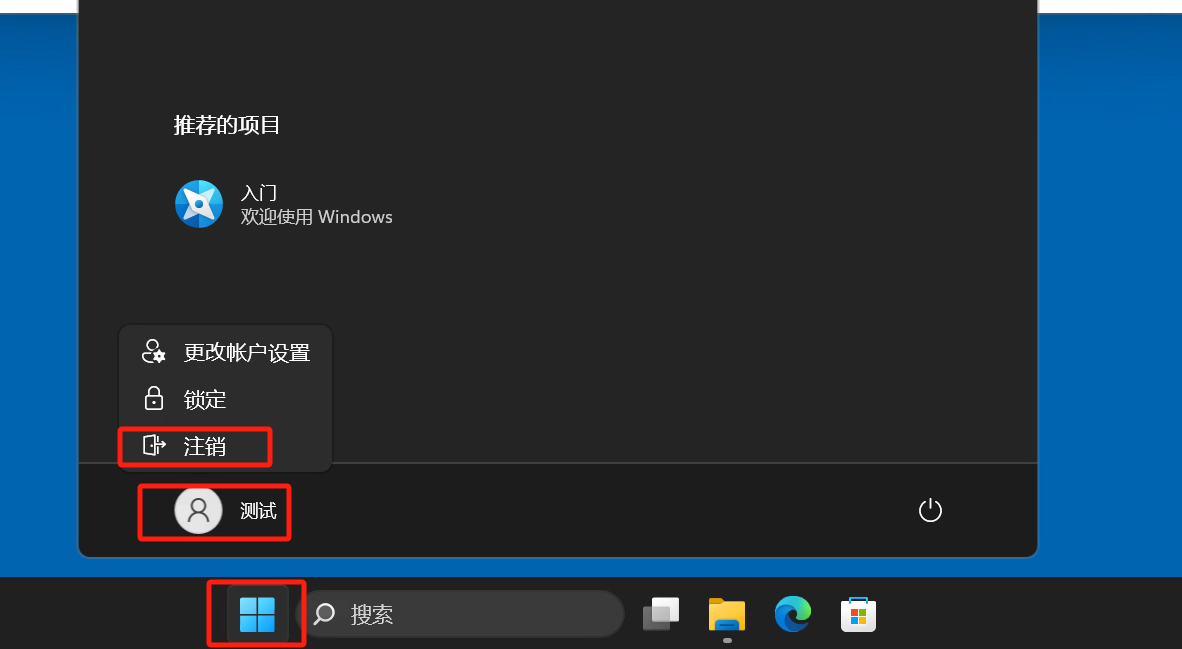
Sign out of Windows and sign in again. If drives are still missing, map them manually or ask the administrator to check storage permissions.
Map your home directory
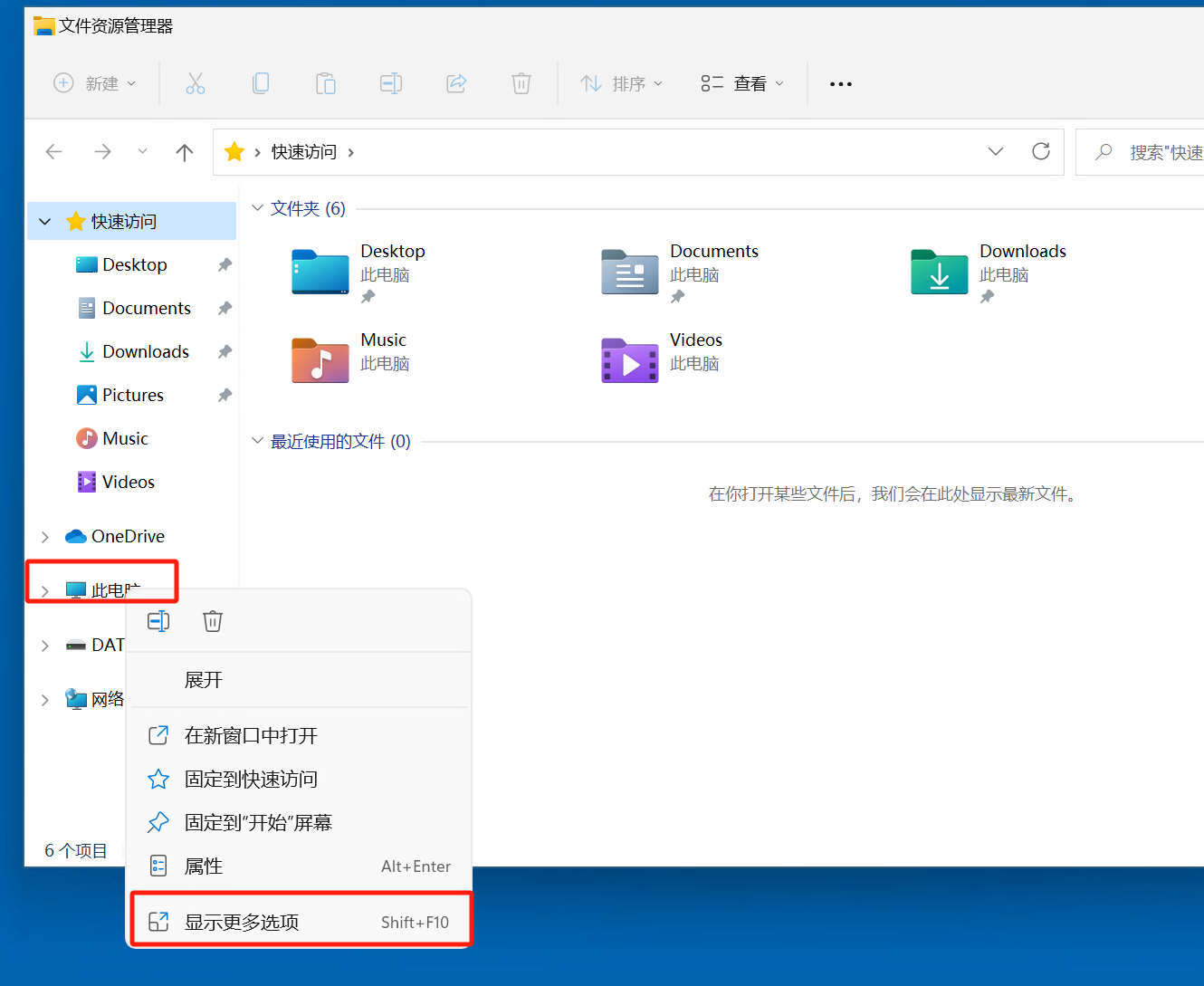
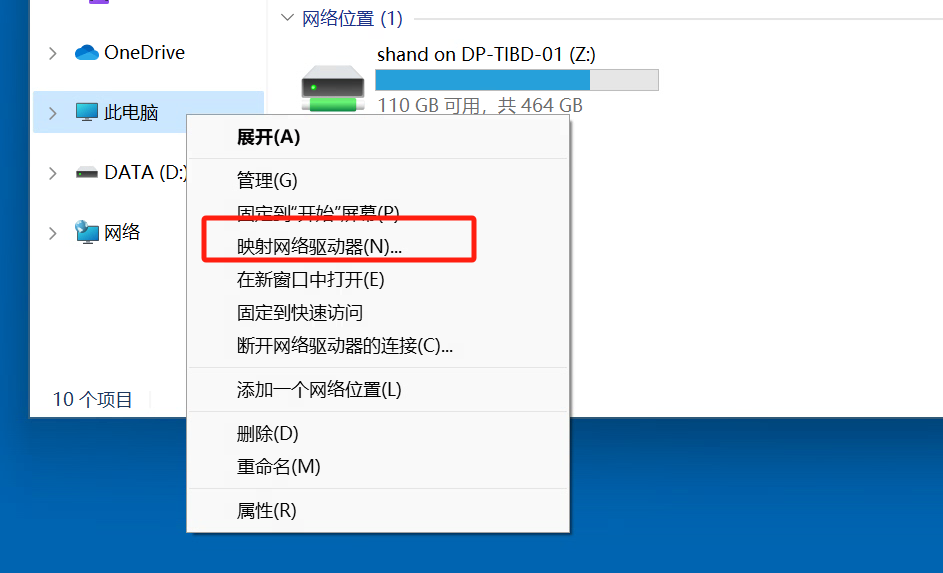
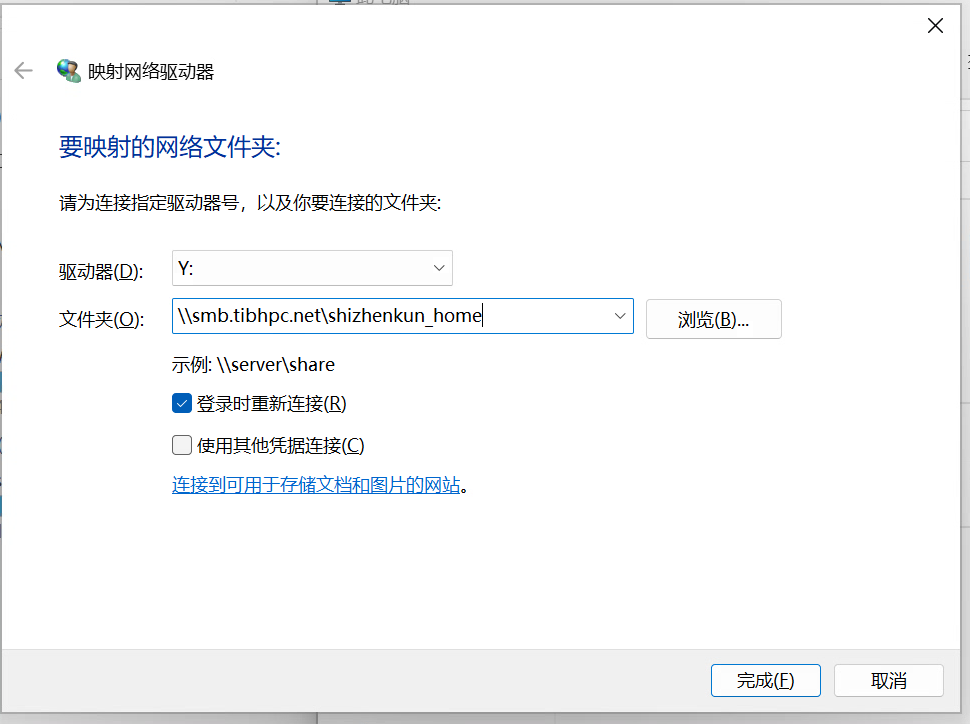
Right-click This PC → Show more options (显示更多选项) → Map network drive (映射网络驱动器). Choose an unused drive letter and enter the following folder, replacing 用户名 with your username:
\\smb.tibhpc.net\用户名_homeKeep Reconnect at sign-in (登录时重新连接) selected and click Finish (完成).
Map your project directory
Repeat the procedure with:
\\smb.tibhpc.net\用户名_project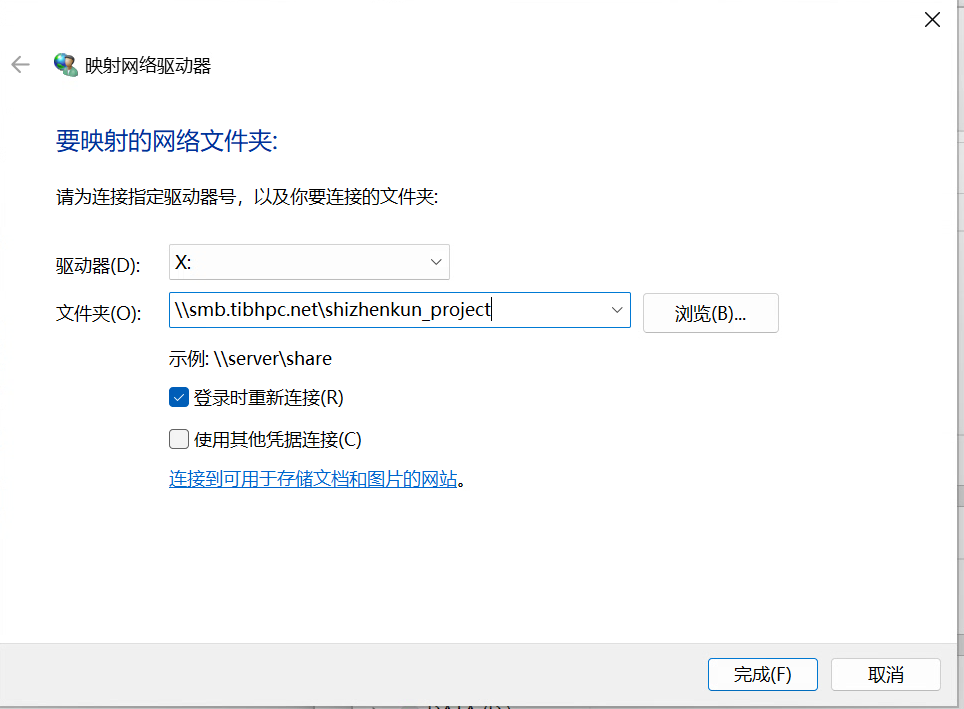
Share a local folder
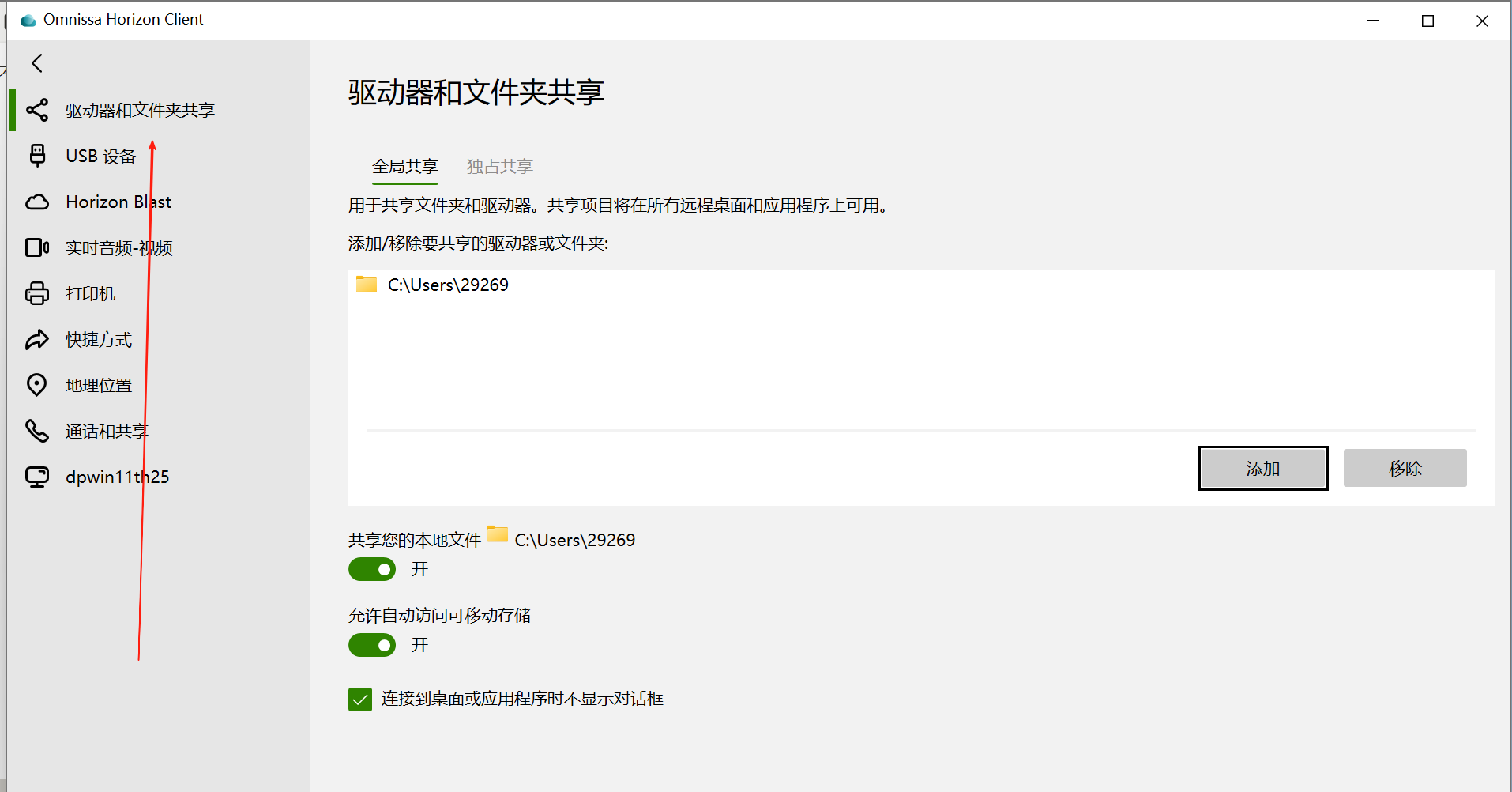
Omnissa's Drive and folder sharing (驱动器和文件夹共享) allows temporary access to files on your own computer.
Select folders carefully
Share only the directories required for your work. Avoid sharing an entire system drive or private or sensitive folders. Remove shares when finished.
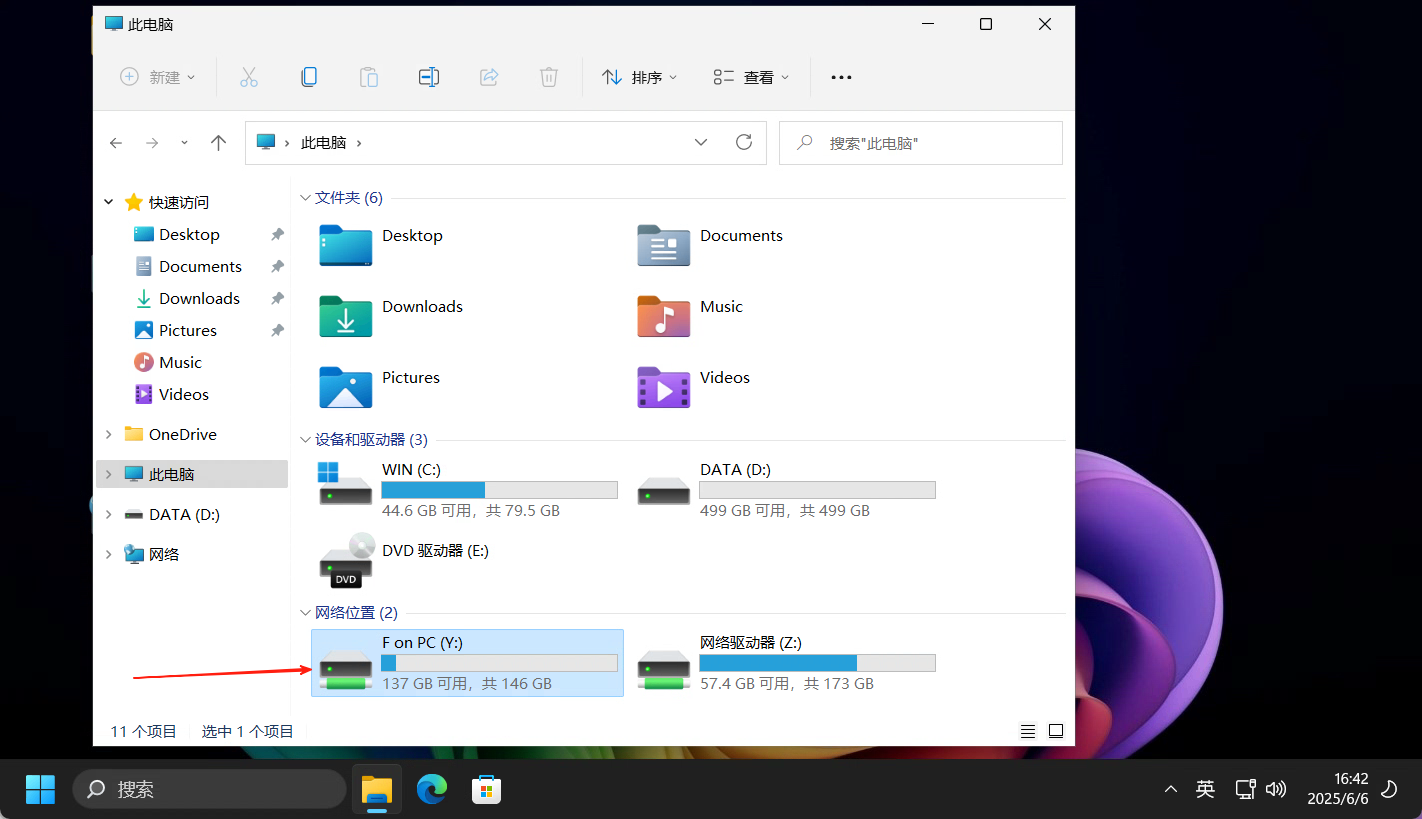
The desktop initially displays its system disk and assigned storage:
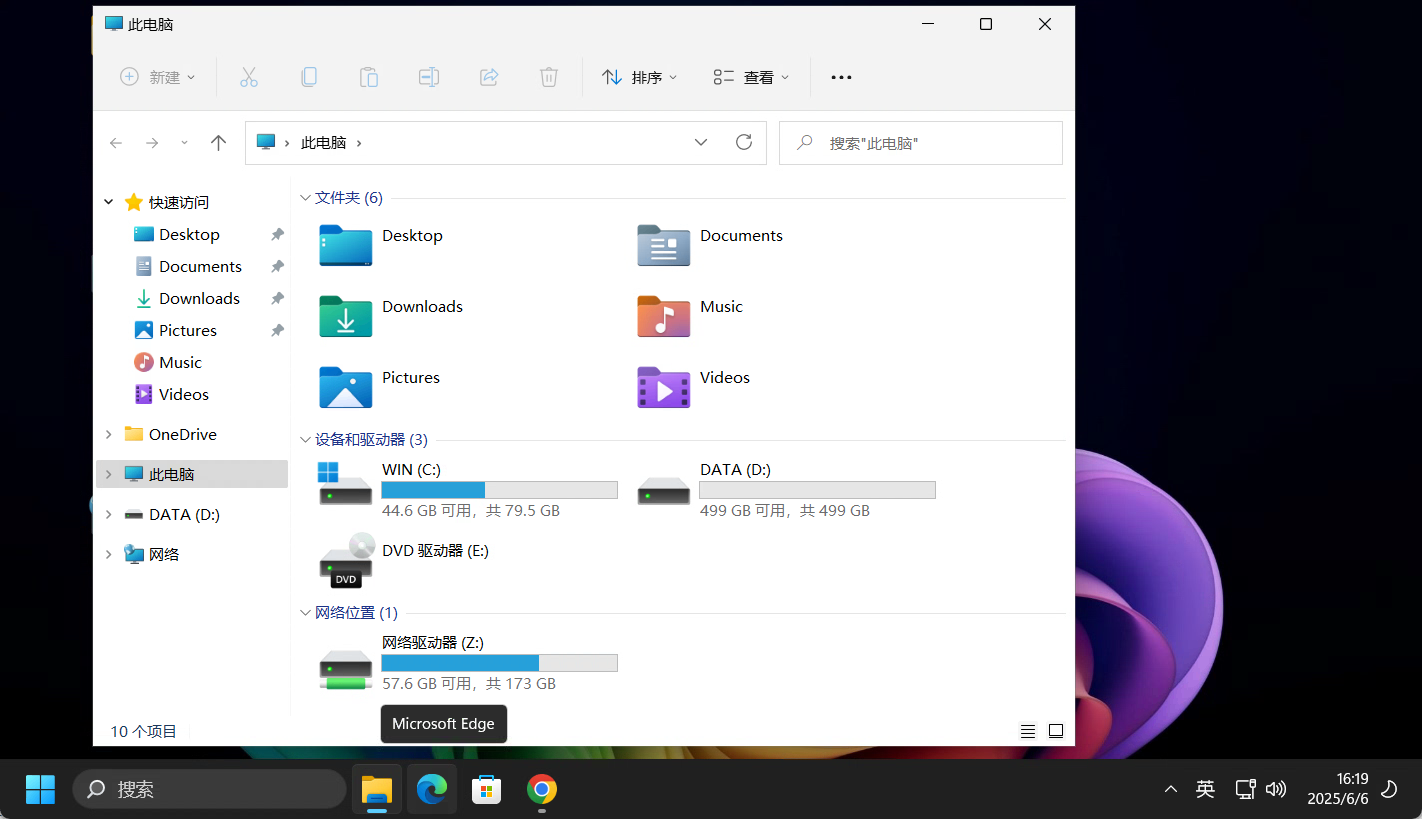
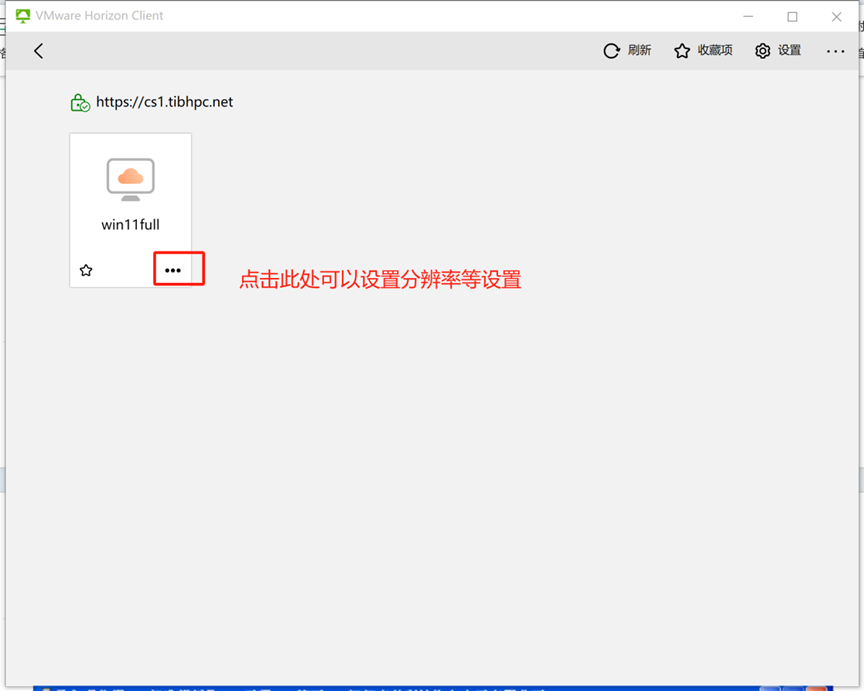
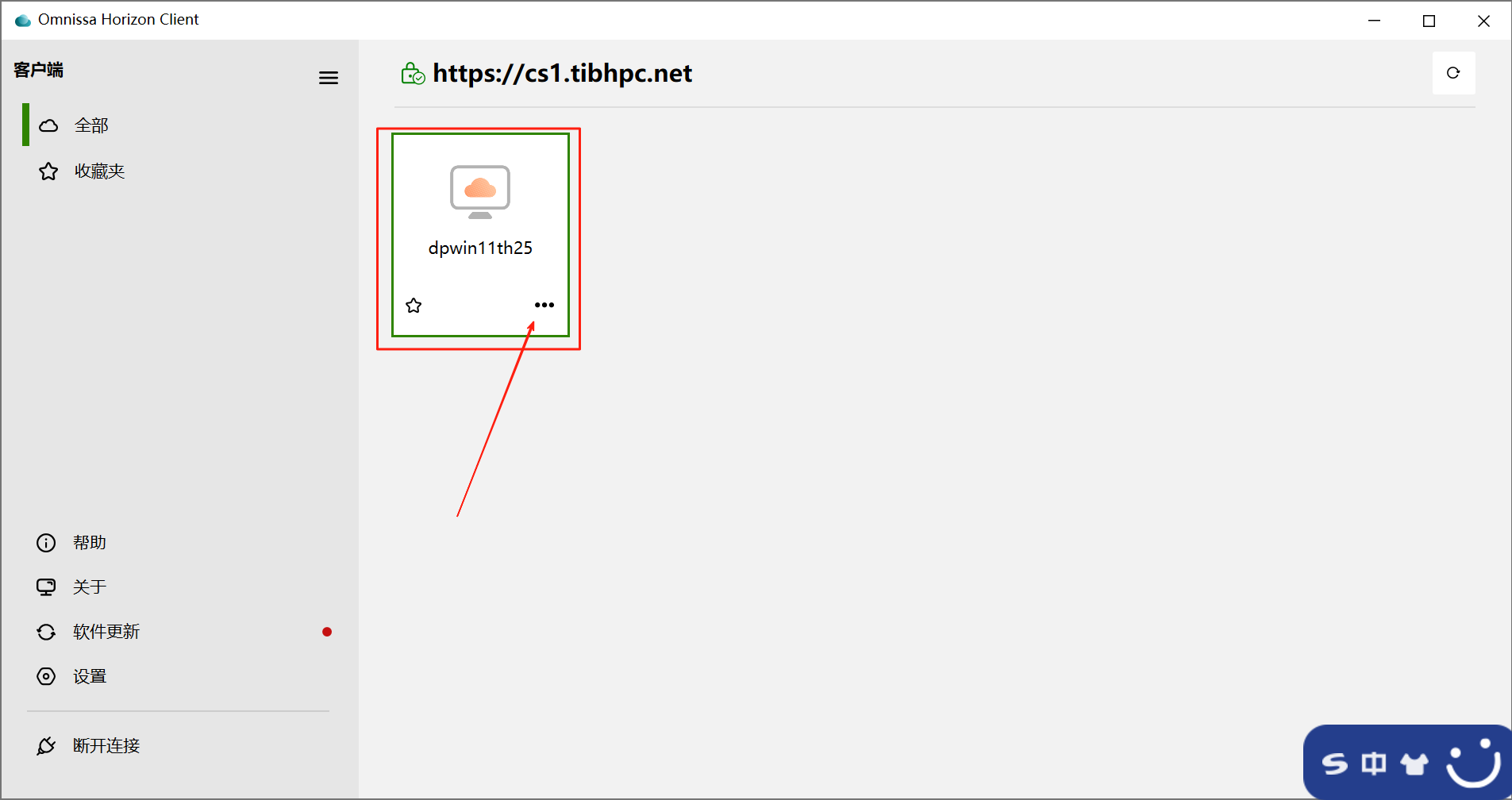
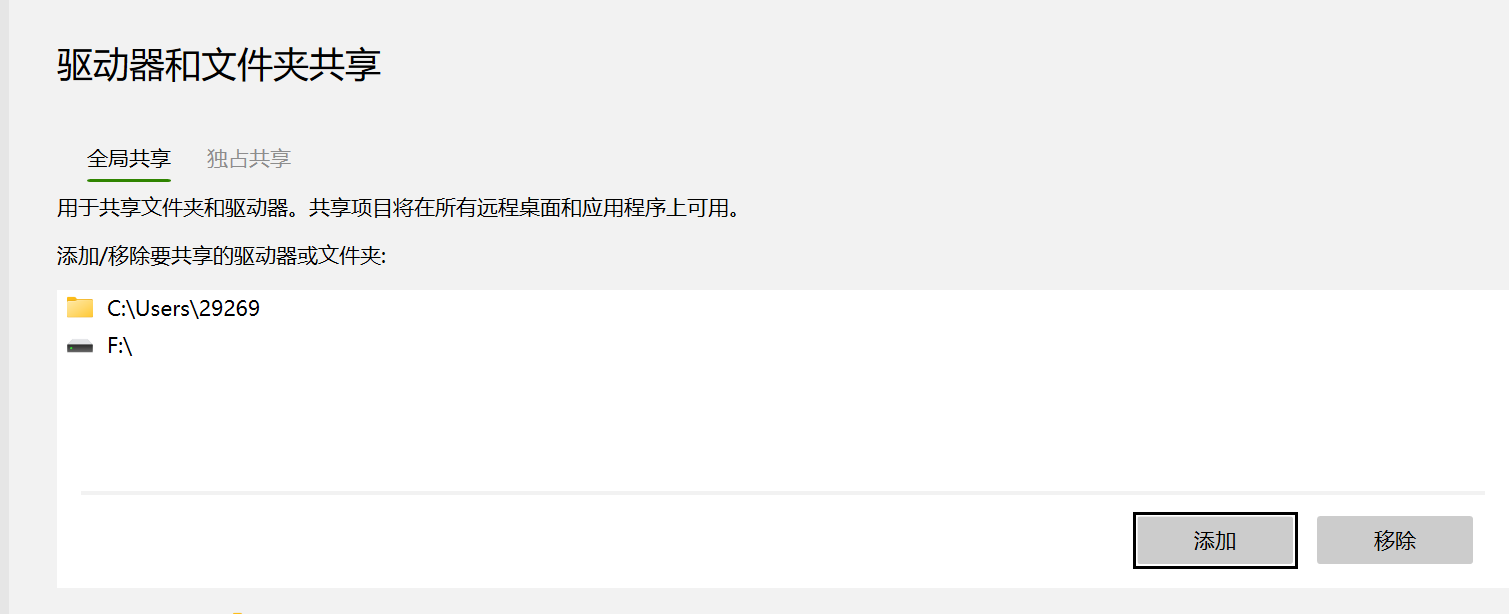
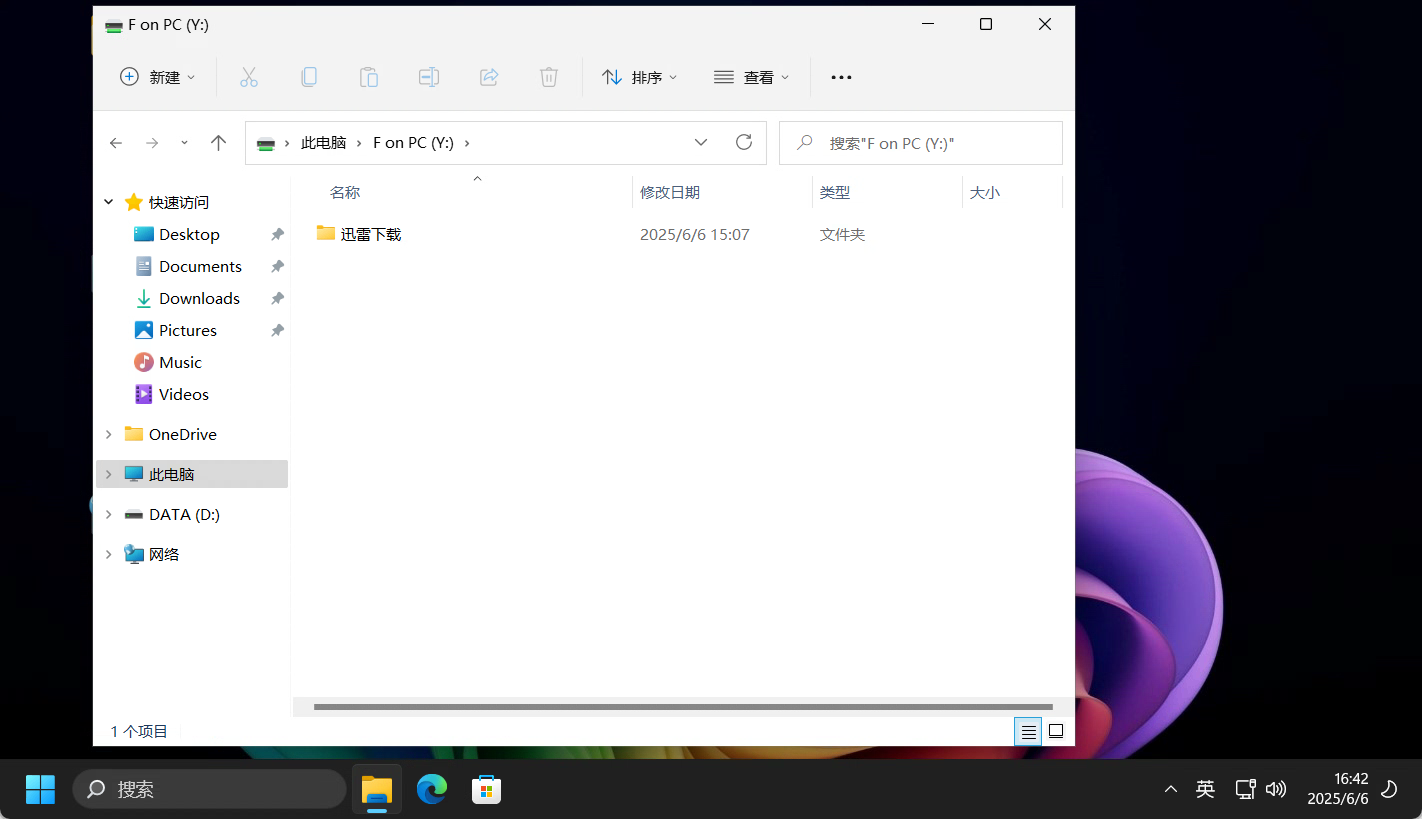
Return to Omnissa, open the … menu beside the virtual machine, select Settings (设置), and open Drive and folder sharing. Click Add (添加), choose a local folder, then return to This PC in the desktop to access it.
Reminders
Use only your own account and approved resources; do not change system security settings. Save important research data to mapped Home or project storage and back it up according to group requirements. If connections fail, try the other endpoint and check your network. Ask the administrator about missing virtual machines, drives, or authorized directories.