
CHESS portal
CHESS is the Taihang I cluster's browser portal for resources, jobs, files, preconfigured applications, container images, and billing. The screenshots show the Chinese interface; Chinese labels are provided alongside their English meanings below.
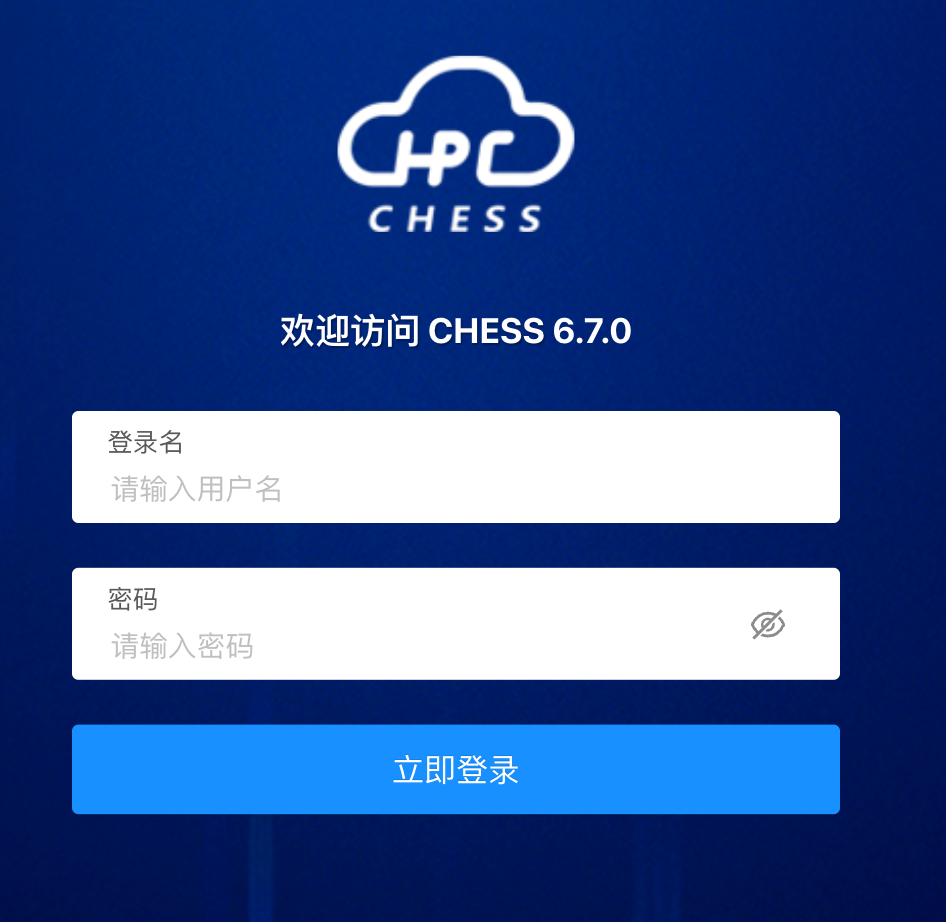
Sign in
Open https://webhpc.tibhpc.net/#/login and enter your platform credentials.
Desktop
The desktop displays application icons, a left navigation bar, and top menus for resources, messages, billing, and personal settings.
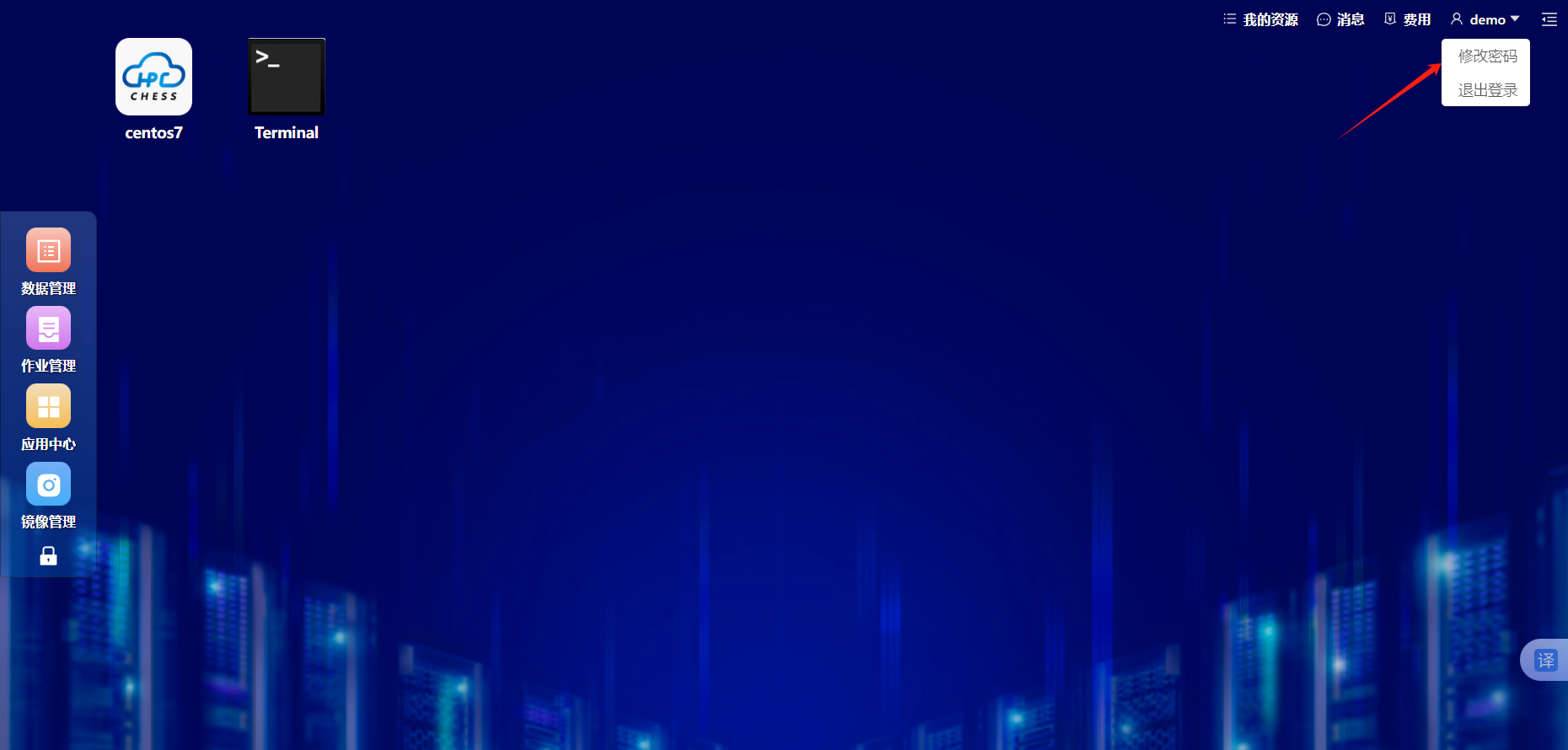
- centos7: opens a Linux graphical or remote working environment.
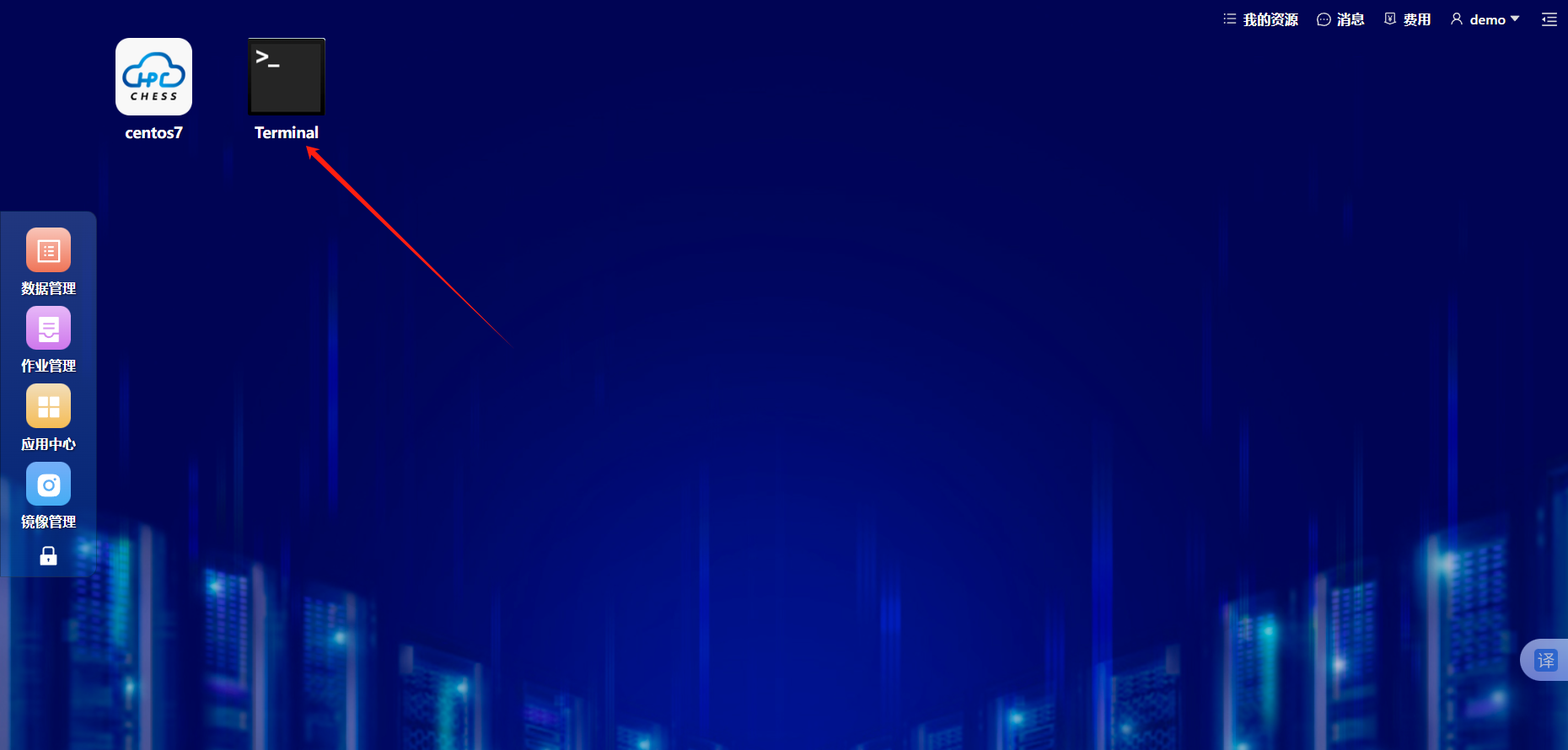
- Terminal: opens the command line.
- Other icons are applications available to your account.
- My Resources (我的资源): partitions, limits, and storage quotas.
- Messages (消息): system notices.
- Fees (费用): job charges and account balance.
- The username menu at the upper right provides password changes and sign-out.

Personal settings
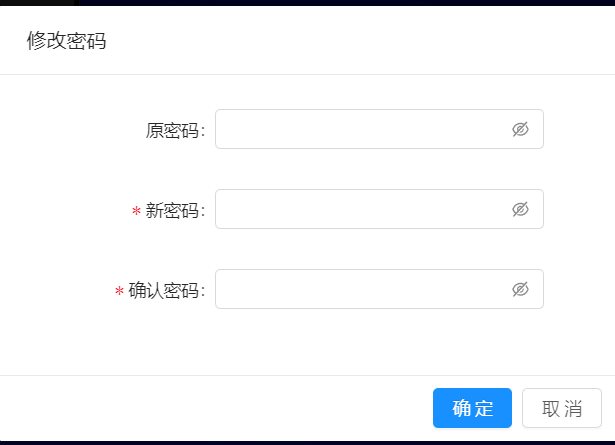
Open the username menu to change your password:
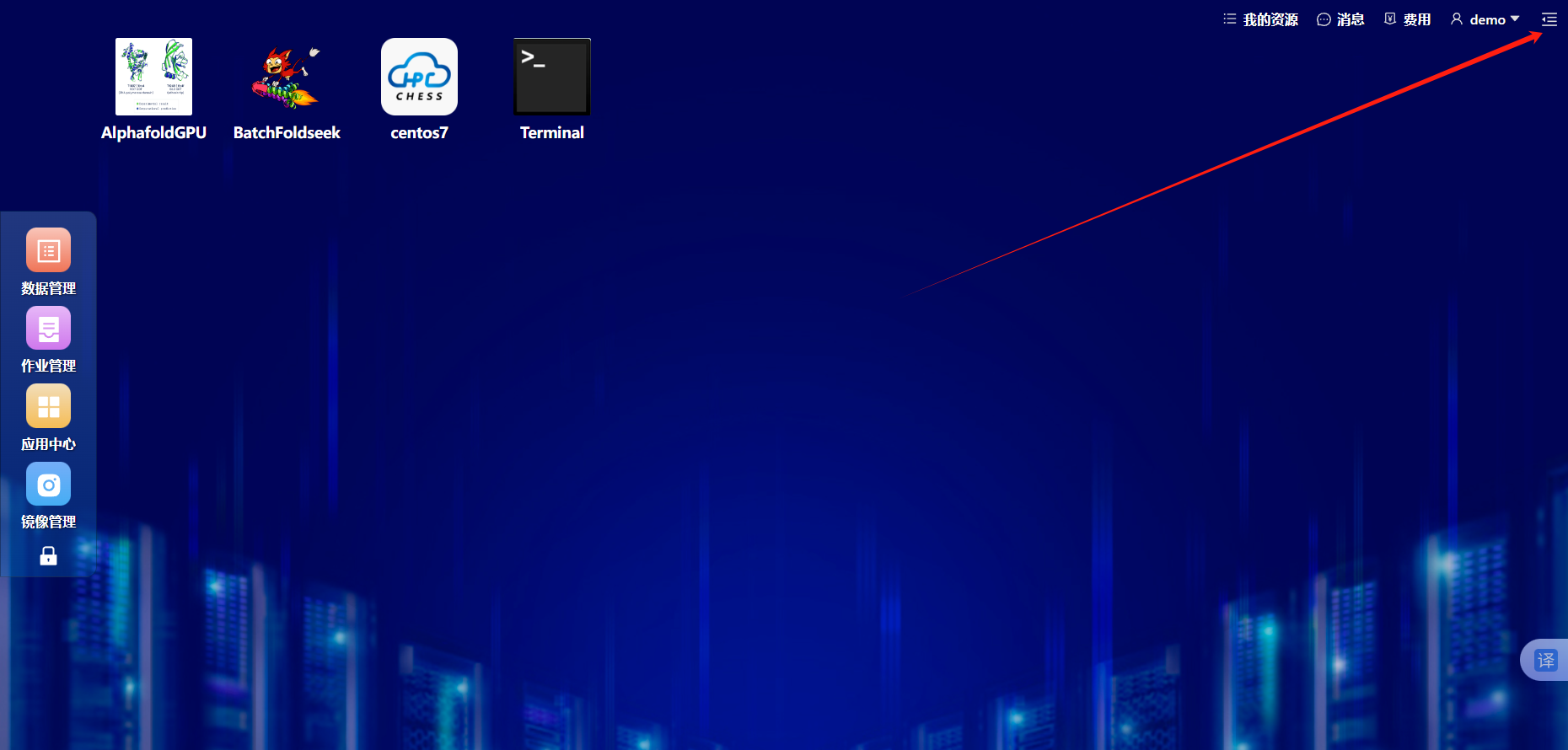
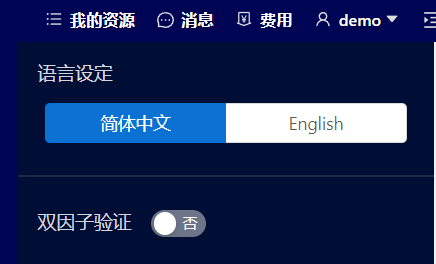
Use the settings panel at the upper right for language and two-factor authentication settings:
Monitoring
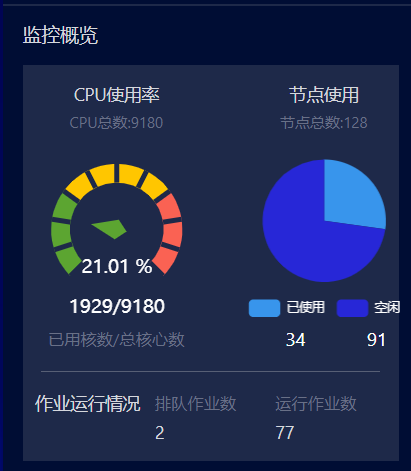
Monitoring cards show CPU utilization, node use, pending jobs, and running jobs to help assess cluster load.
My Resources
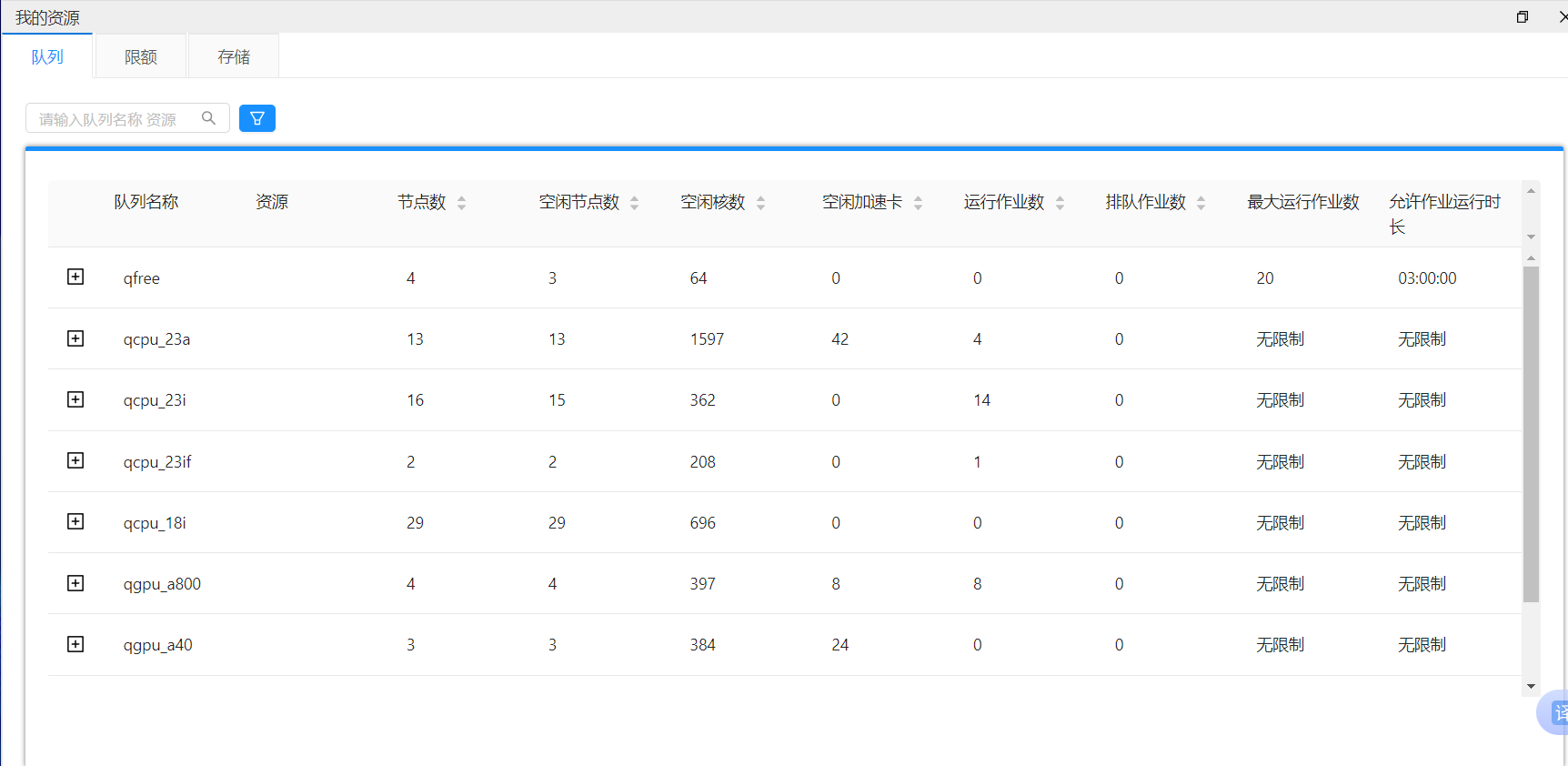
Partitions
Review authorized partitions, total and idle nodes, available CPU cores and accelerators, and job time limits before submitting.
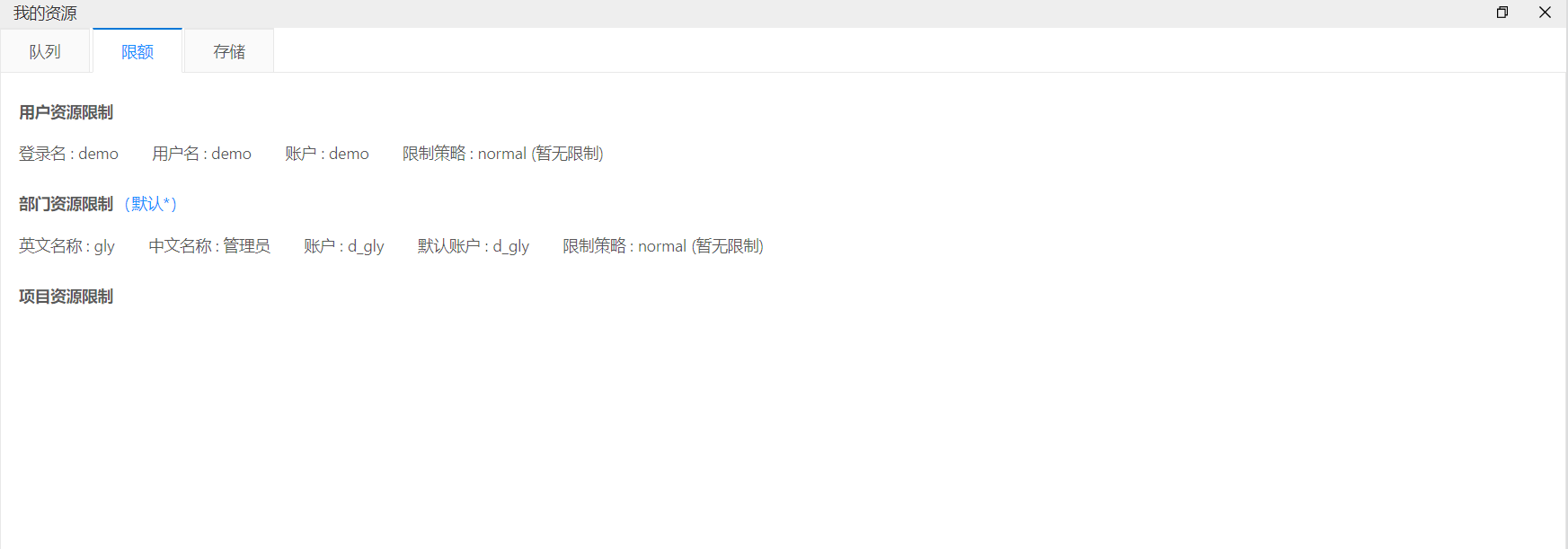
Limits
Review user-, department-, or project-level policies, associated accounts, and the default account.
Storage
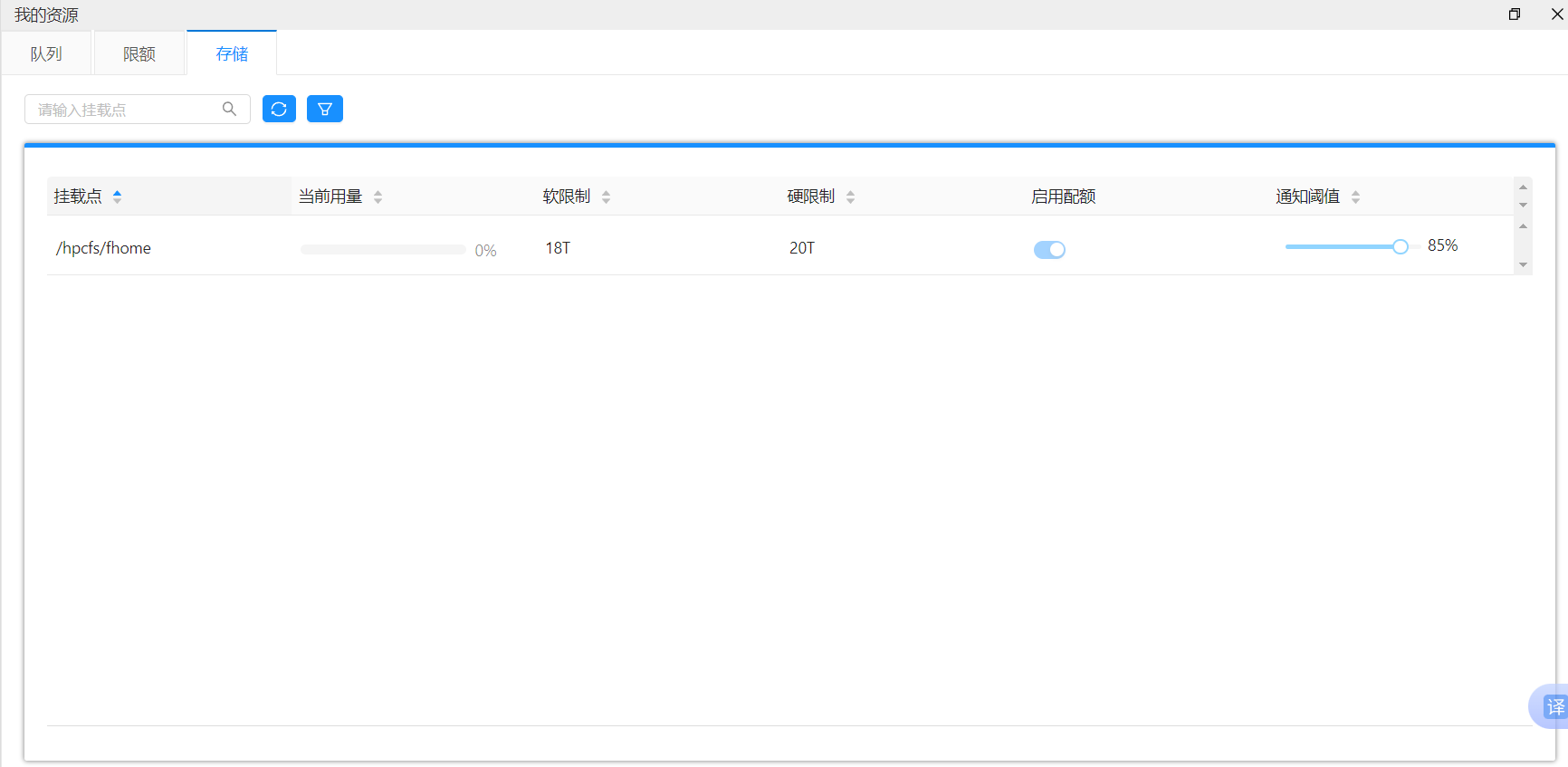
Check usage, soft and hard limits, and warning thresholds for each mount point. Clean up before reaching the quota.
Billing
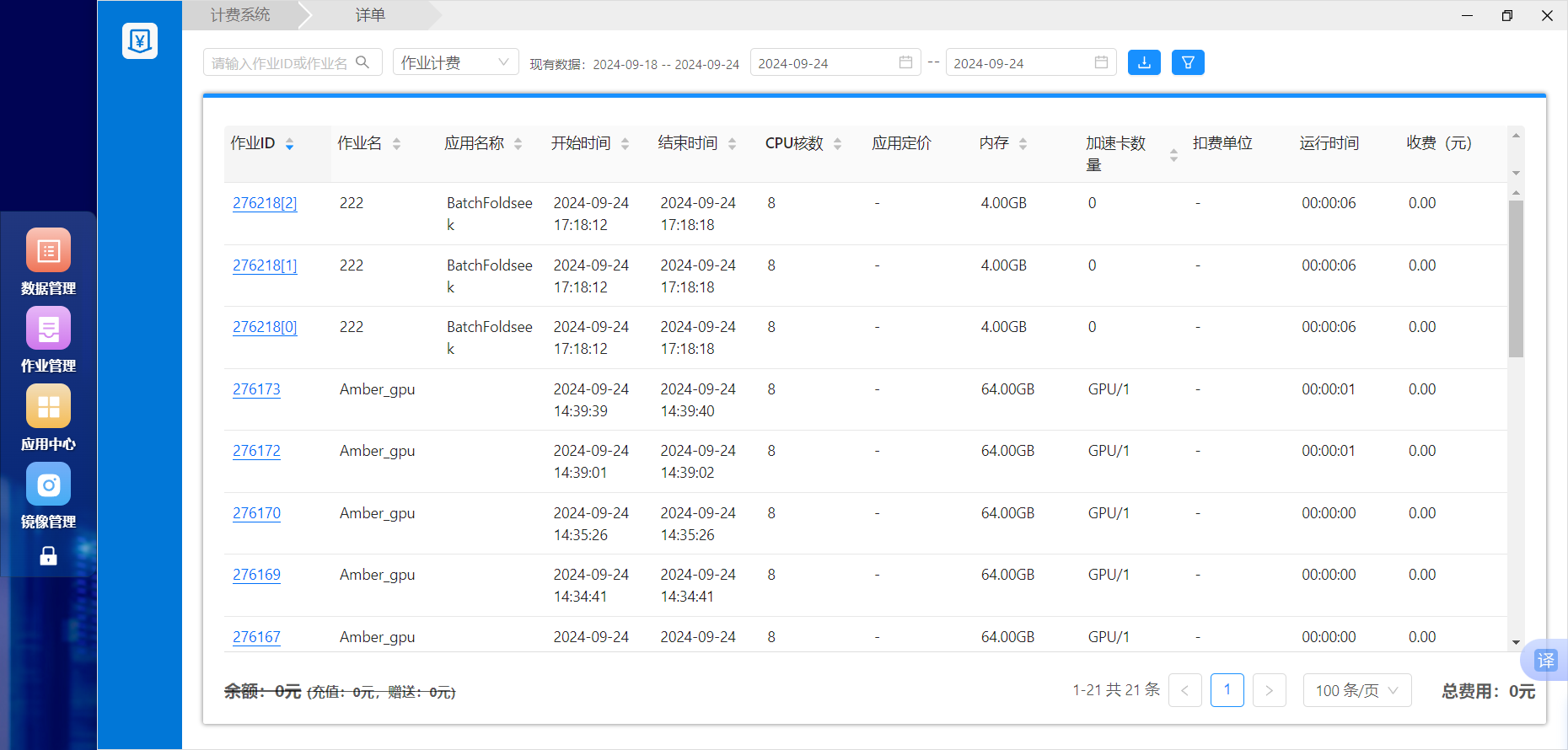
Open Fees (费用) to inspect charges over a selected date range, including job ID, application, CPU and accelerator allocation, duration, and amount charged.
Data Management (数据管理)
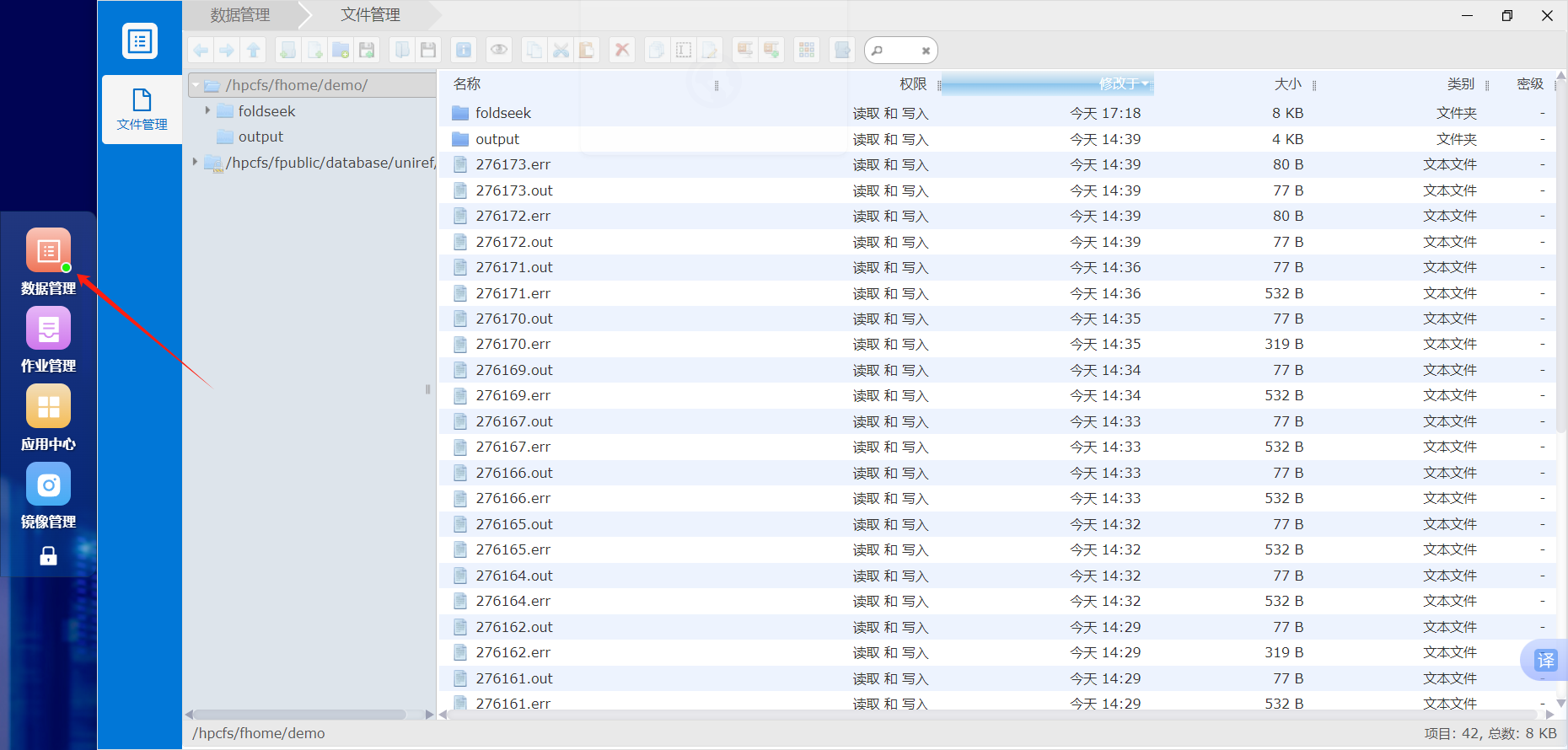
Browse personal and public directories, create folders, upload and download files, preview or edit text, inspect file details, copy paths, and adjust authorized permissions.
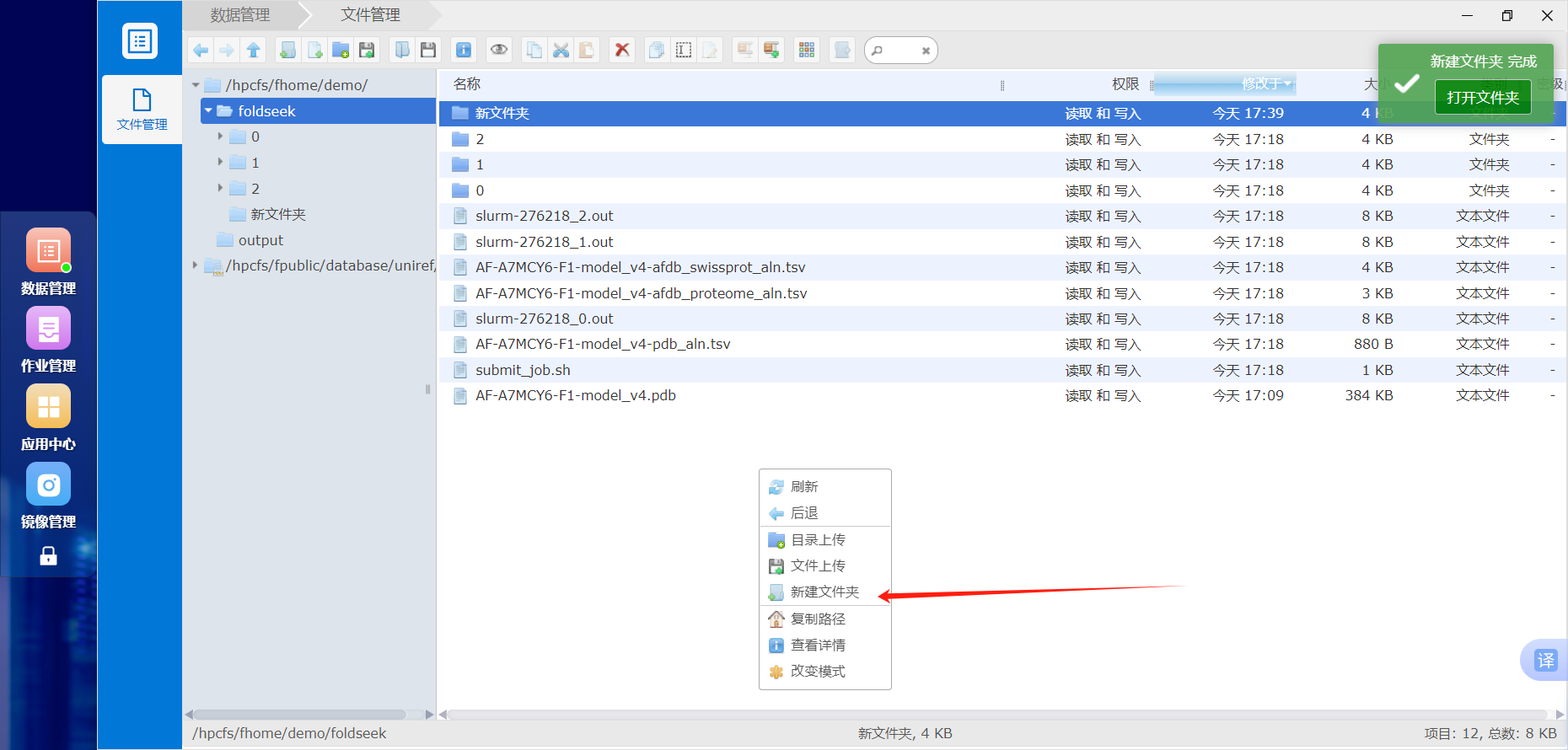
Right-click in the target directory and select New Folder (新建文件夹):
Right-click a file for preview, download, copy, cut, delete, rename, edit, copy path, and details:
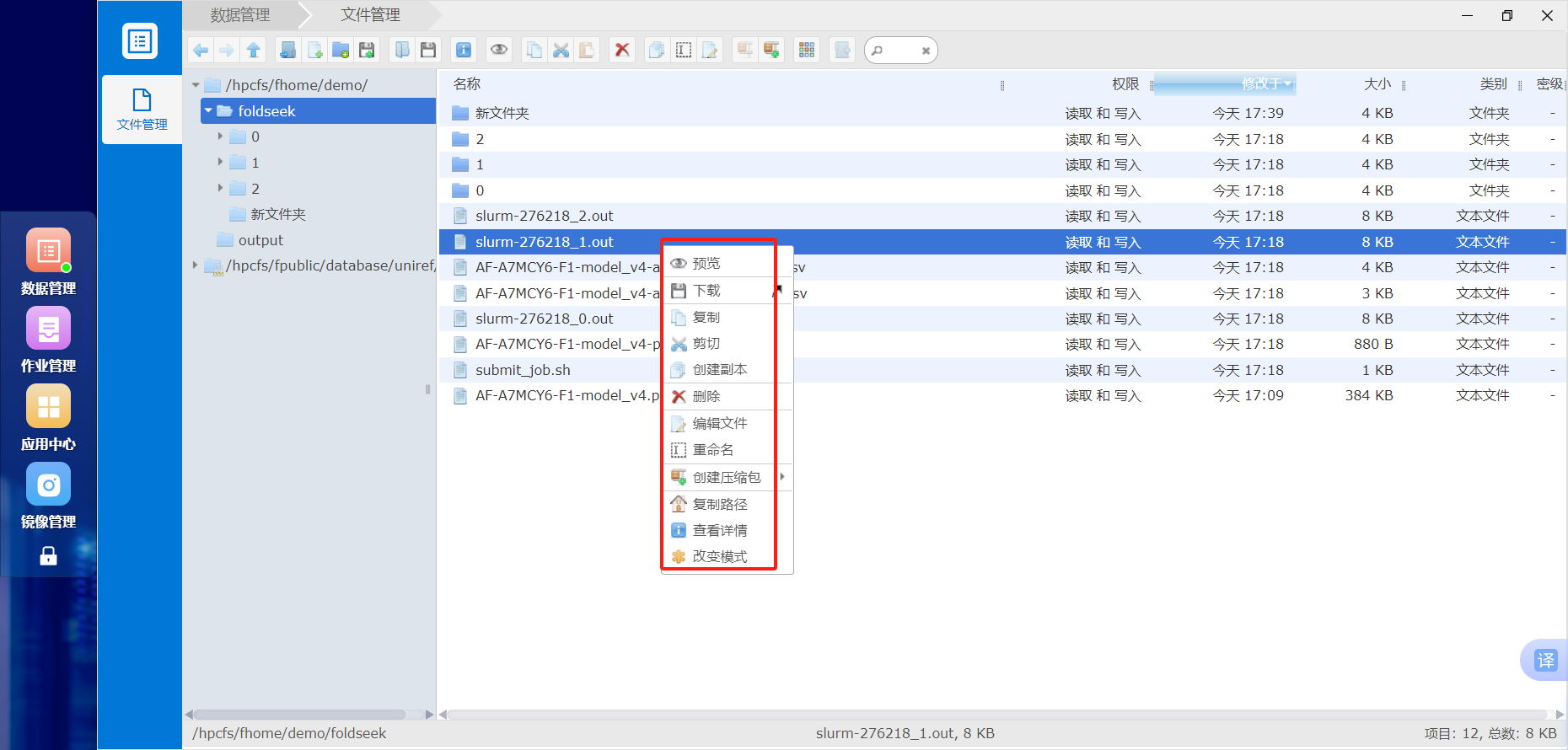
The toolbar provides back/forward, upload/download, new, delete, refresh, view, and search actions:

Job Management (作业管理)
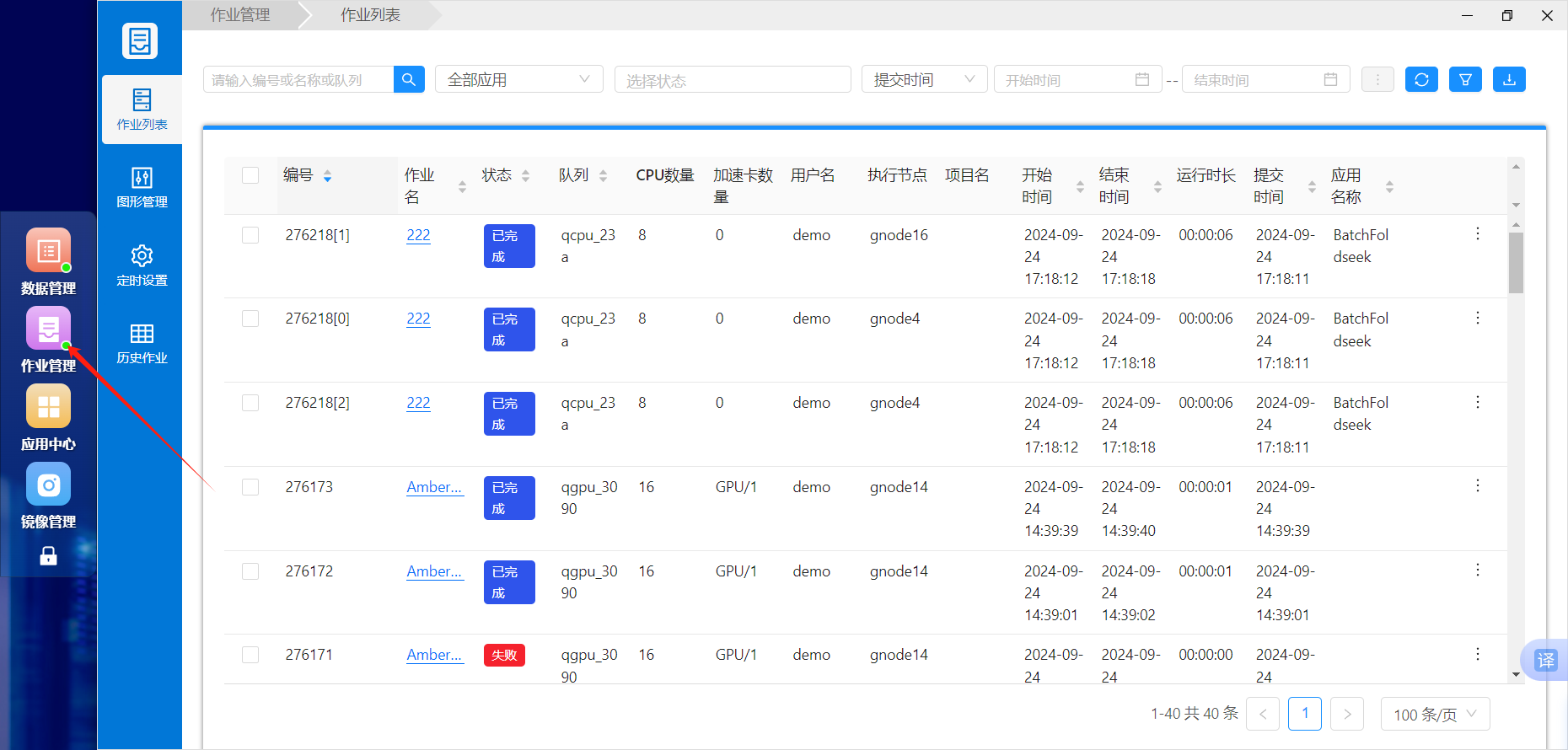
Job list (作业列表)
View current and historical job IDs, names, states, partitions, CPU/GPU allocations, execution nodes, start/end times, and elapsed time.
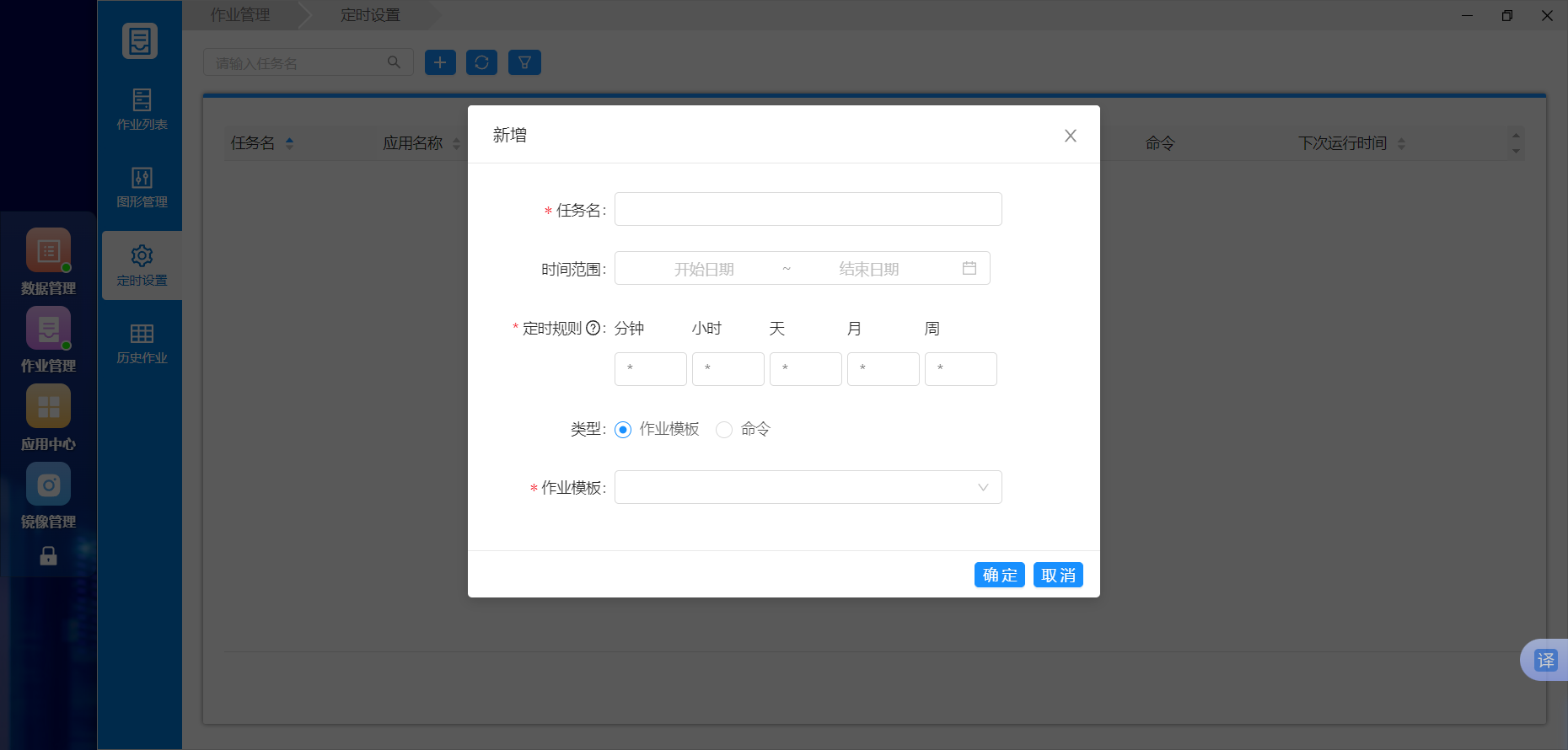
Scheduled jobs (定时设置)
Create recurring tasks by specifying the task name, date range, recurrence, and job template or commands.
Application Center (应用中心)
Browse and launch available applications such as Terminal, Jupyter, PyTorch, CodeServer, MATLAB, and VASP.
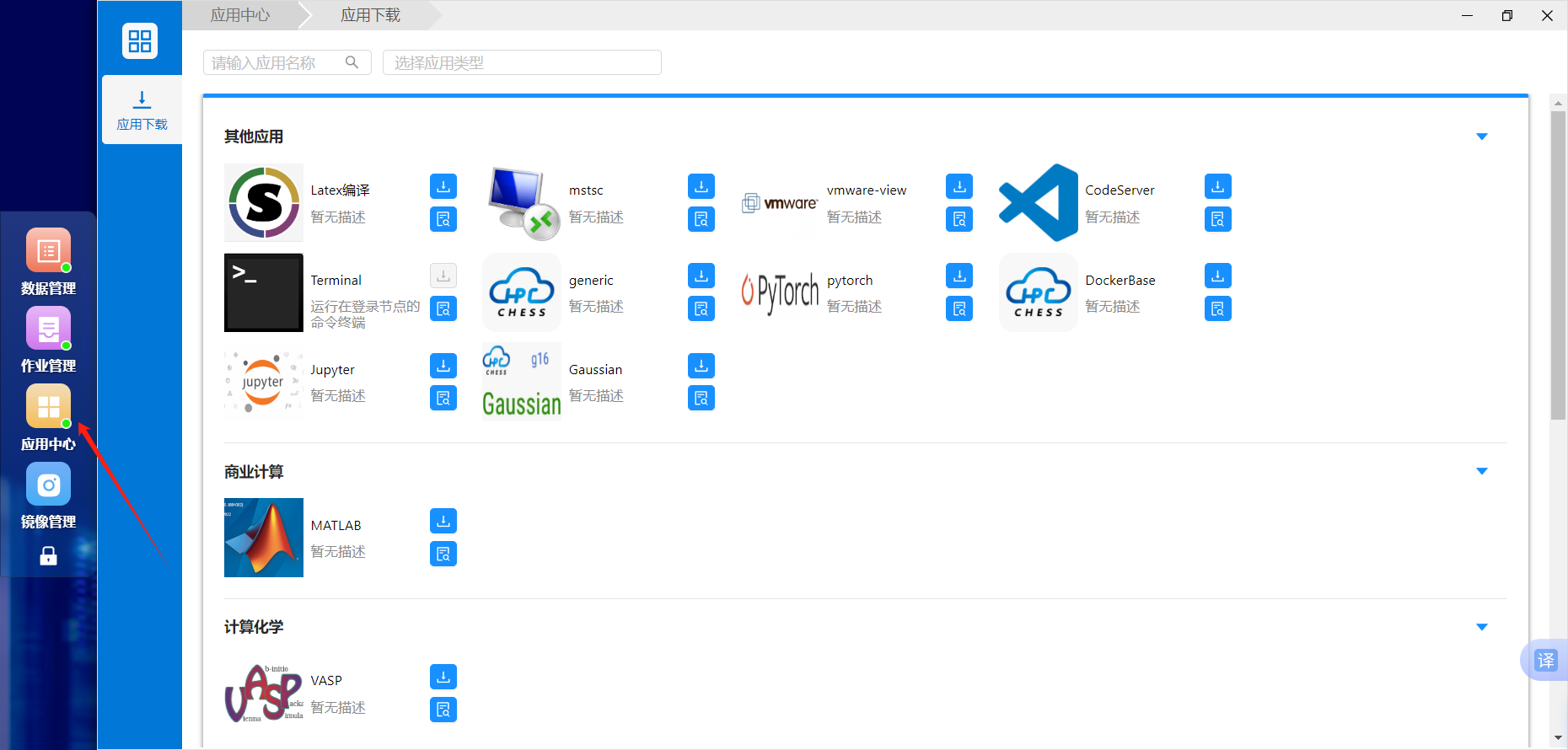
Image Management (镜像管理)
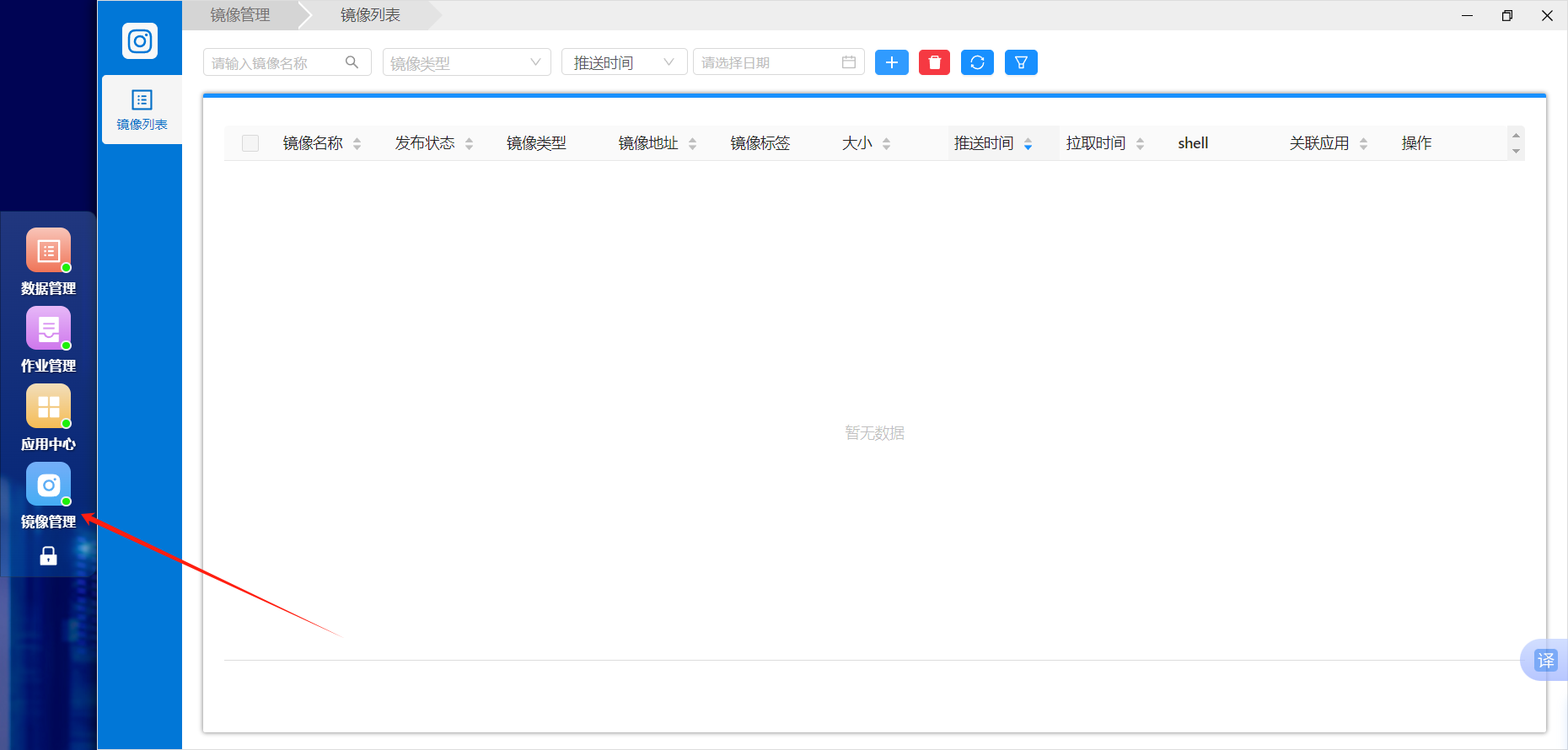
Inspect personal images, including names, tags, addresses, sizes, push times, and associated applications.
Terminal
Open Terminal from the desktop for job submission, file management, and environment checks.
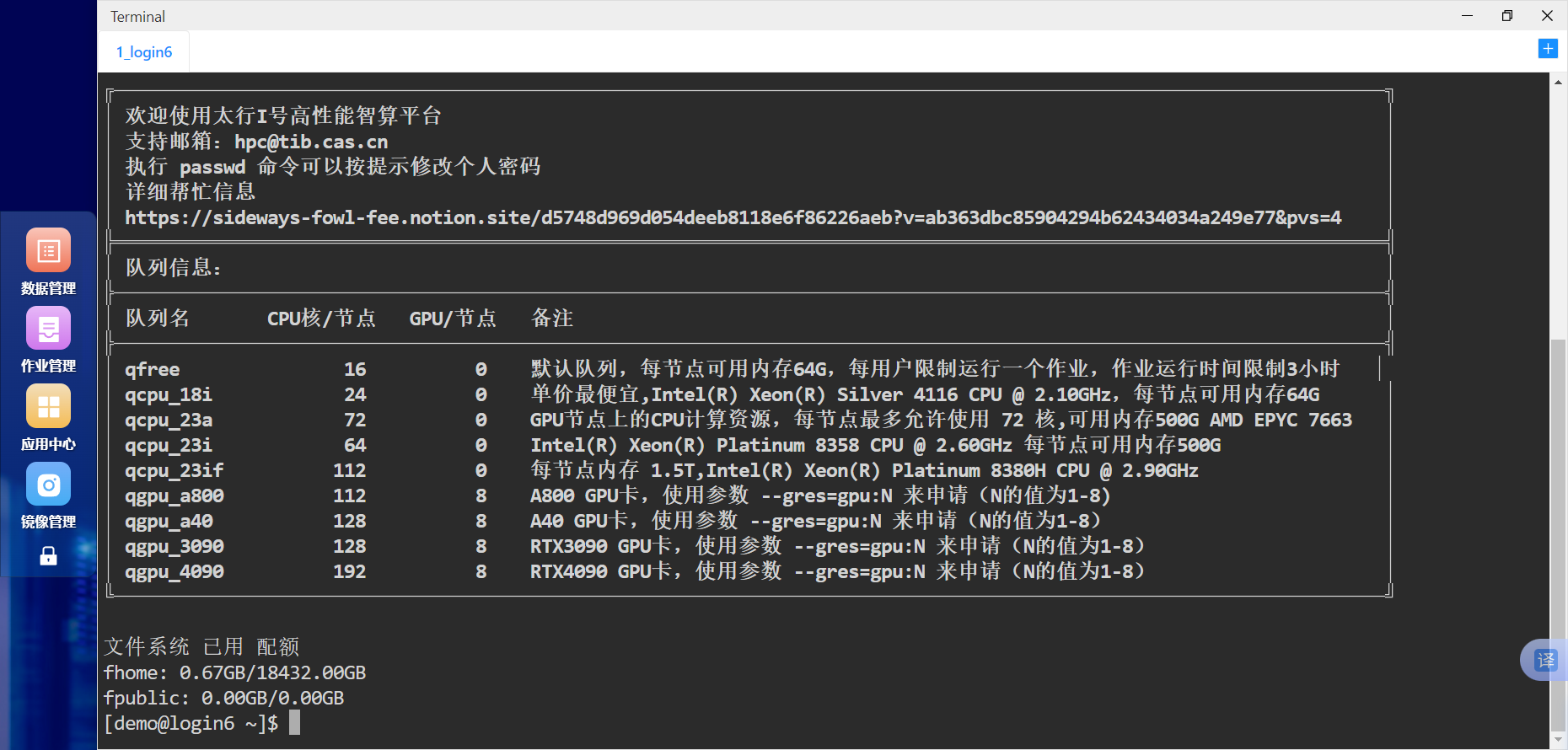
The terminal welcome screen normally includes partition and filesystem quota information.
Good practice
Change your initial password, check authorized resources before submitting, monitor storage and output directories, and use Job Management with Terminal for batch workflows. Contact platform support for account, resource, or job problems.