
On-site access
Connect to the institute's TIB wired or wireless network to access the login nodes directly over SSH. Your account must already be activated.
Windows users can use Xshell, MobaXterm, or PuTTY; macOS and Linux users can use Terminal. SCP and SFTP are available for file transfer.
Login nodes
Use login nodes for environment setup, compilation, data organization, short tests, and job submission. Submit sustained or intensive computations to a compute partition.
| Setting | Value |
|---|---|
| Host | login.tibhpc.net |
| Protocol / port | SSH / 22 |
| Authentication | Username and password; enable Keyboard Interactive in the client |
Graphical SSH client
In Xshell, select File → New, and enter login.tibhpc.net as the host.
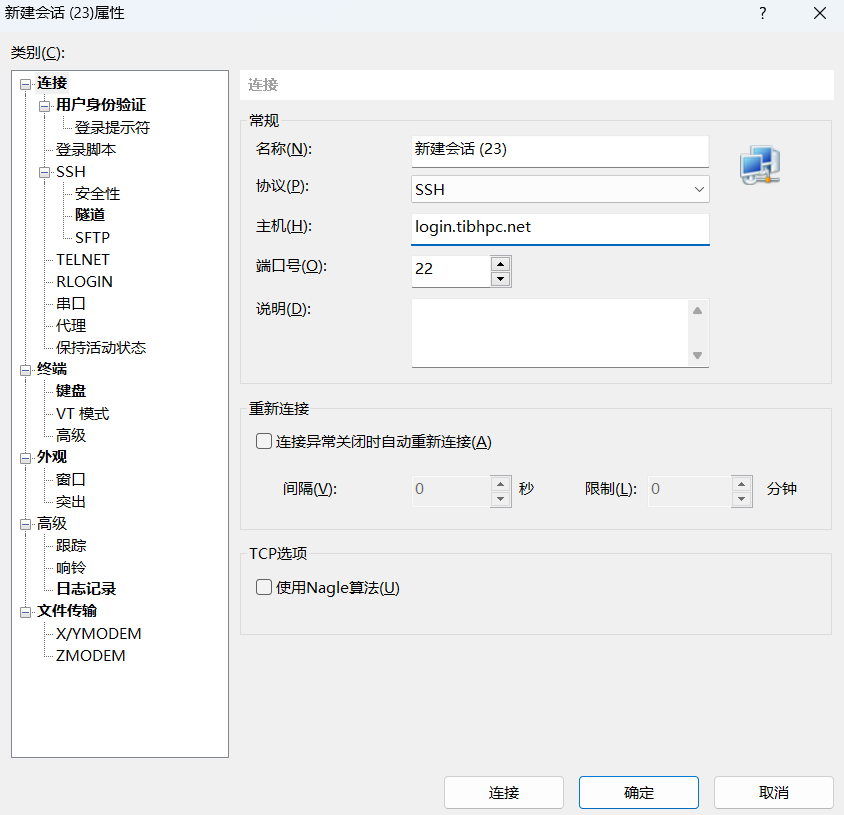
Select SSH, retain port 22, and enable Keyboard Interactive authentication.
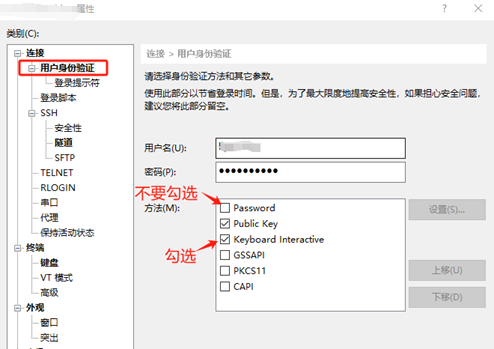
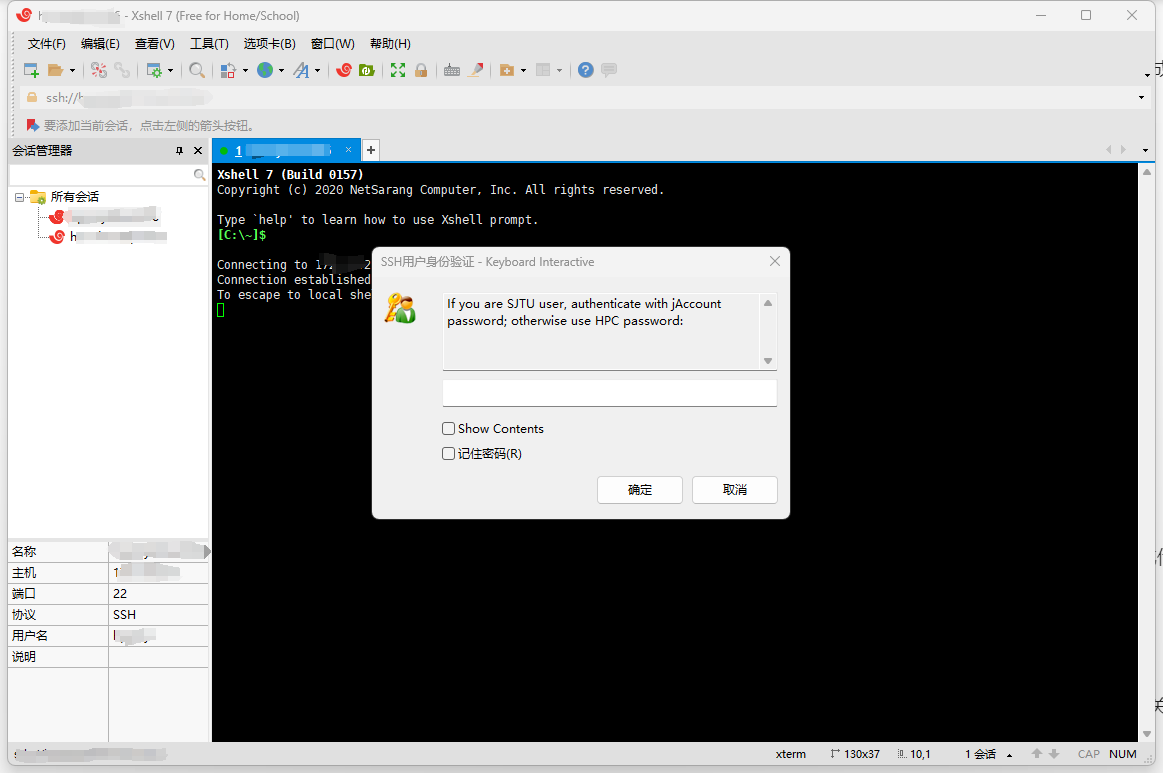
Save and connect. Enter your platform username and password when prompted.
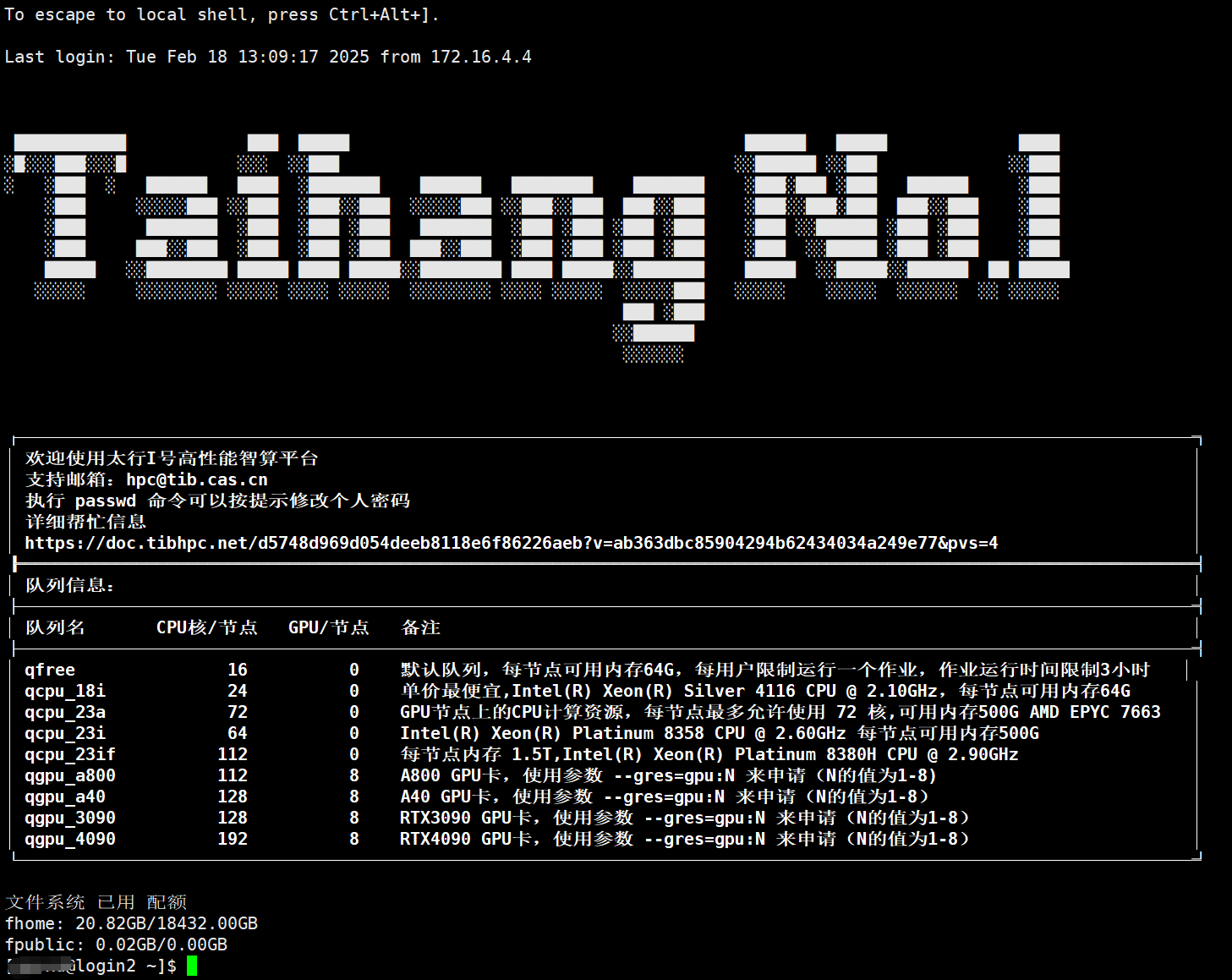
A shell prompt indicates a successful connection.
Other clients have equivalent host, port, username, and authentication settings.
Command-line access
In Terminal or PowerShell, replace 用户名 with your username:
ssh 用户名@login.tibhpc.netOn first connection, verify the server identity before accepting its host key, then enter your password.
File transfer
Upload a local file (本地文件) to your home directory:
scp 本地文件 用户名@login.tibhpc.net:~/Download a remote file (远程文件) to the current local directory:
scp 用户名@login.tibhpc.net:~/远程文件 ./After signing in
Change the initial password, check access to your home directory, inspect authorized partitions and resource limits, upload a small test file, and run a small test job before production work.
See Partitions, Resource limits, and Slurm.
Troubleshooting
If the host is unreachable, confirm that you are on the TIB network; reconnect or contact the administrator. If authentication fails, check the username, password, spaces, and input method. Enable Keyboard Interactive if necessary. Contact the administrator after repeated failures to check account status.