
File transfer
Use SFTP for cluster file transfers. This guide uses WinSCP on Windows and Cyberduck on macOS for drag-and-drop uploads and downloads.
Prerequisites
Your account must be activated and able to sign in. Ensure that the login node is reachable; off-site users should first follow Off-site access. Use your own credentials.
Windows: WinSCP
Download a stable release from the official WinSCP download page and install it using the standard installer options. Avoid unofficial packages and test releases for routine use.
Connect
| Setting | Value |
|---|---|
| File protocol | SFTP |
| Host name | login.tibhpc.net |
| Port | 22 |
| Username / password | Your platform credentials |
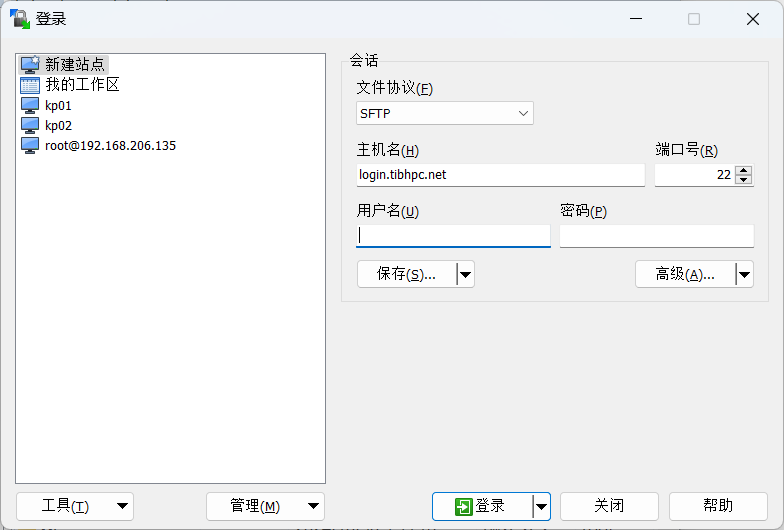
Click Login. You may save the host, port, and username, but do not save passwords on shared computers.
Host key
Verify the server identity on first connection. If a saved host key has changed, contact the administrator before accepting the change.
Upload and download
The left pane shows local files and the right pane shows cluster files. Your home directory normally follows this pattern (用户名 means your username):
/hpcfs/fhome/用户名/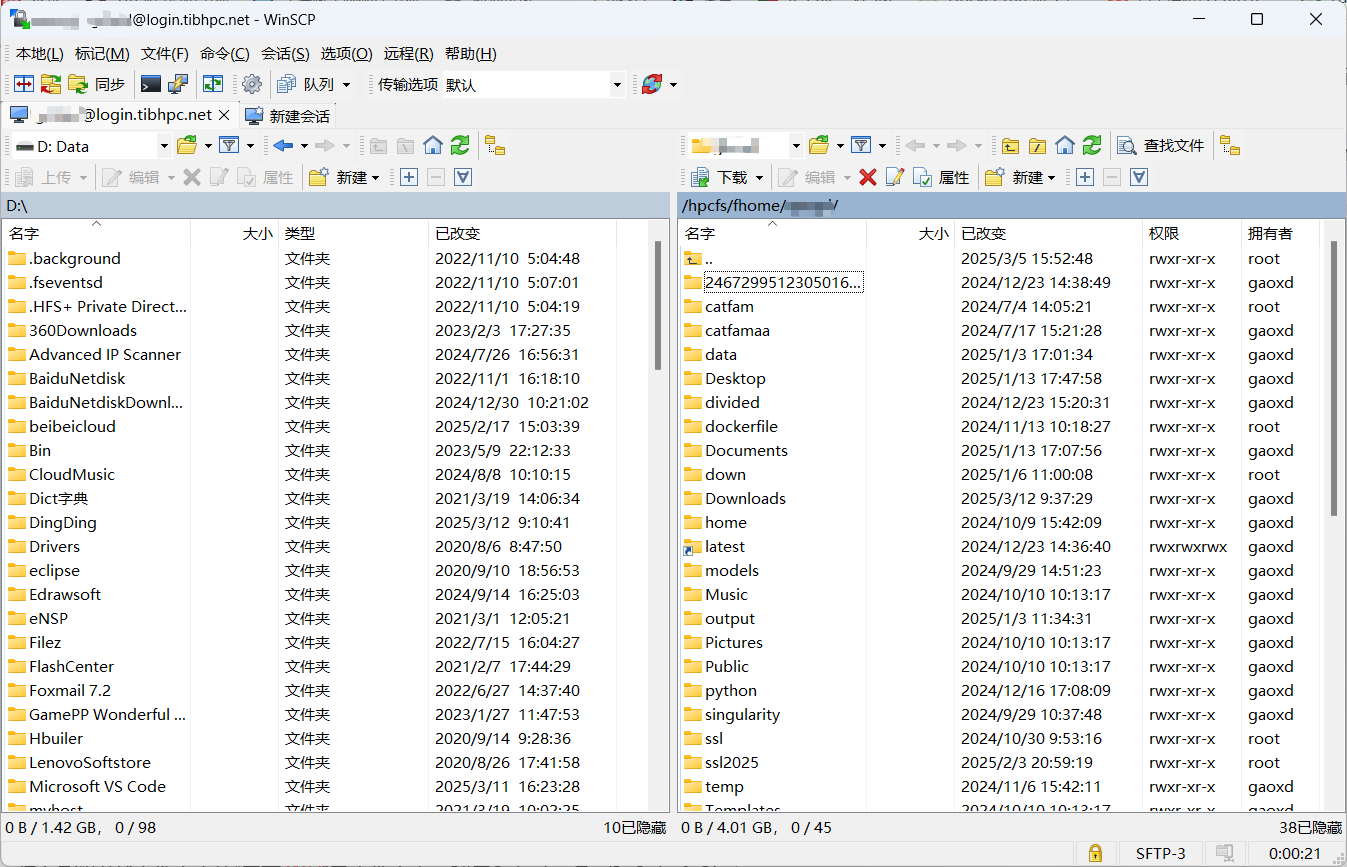
To upload, open the source folder on the left and destination on the right, drag files from left to right, and confirm the destination. To download, select remote files on the right, choose a local destination on the left, and drag right to left. Wait for the transfer queue to finish and check file sizes.
macOS: Cyberduck
Download a stable macOS release from the official Cyberduck website. Extract it and move Cyberduck.app into Applications. Intel and Apple silicon Macs are supported by the client described in this guide.
Select Open Connection → SFTP (SSH File Transfer Protocol). Enter login.tibhpc.net, port 22, and your platform username and password. Click Connect, verify the server identity, and investigate any changed host-key warning with the administrator.
- Upload: open the target remote folder and drag files from Finder into Cyberduck.
- Download: select remote files and choose Download, or drag them into the destination Finder folder.
- Progress: use the Transfers window; resume interrupted transfers where supported.
Large transfers
Keep the client and network connected until the queue finishes. Prefer resuming interrupted transfers to creating duplicate copies. Archive many small files before downloading. Write only to your authorized Home or project directories. Check file sizes and, for important data, compare file hashes.
Create an archive on the cluster:
tar -czf results.tar.gz results/Calculate its SHA-256 hash on the cluster:
sha256sum results.tar.gzCalculate the local hash in Windows PowerShell:
Get-FileHash .\results.tar.gz -Algorithm SHA256Or in macOS Terminal:
shasum -a 256 results.tar.gzTroubleshooting
- Cannot connect: check the host, port, network, and account status; off-site users also need VPN connectivity.
- Authentication failed: check credentials and whether the account is activated or expired. Test SSH or contact support after repeated failures.
- Permission denied: use your own directory or an authorized project directory. Ask the administrator to check ACLs; do not change unfamiliar directory permissions.
- Slow transfers: local networks, off-site connections, file counts, and disk throughput affect speed. Archiving many small files can help.