
JupyterLab
JupyterLab is a browser-based environment for code, data inspection, analysis records, and project files. Allocate compute resources before starting it; see Interactive allocation.
Allocate a node
salloc -N 1 --cpus-per-task=8 --mem=16G -t 02:00:00 -p qcpu_18iWait for allocation and connect to the actual assigned node (the example uses bnode1):
ssh bnode1Start JupyterLab
Activate an environment containing JupyterLab; use its actual name:
conda activate jupyterlabStart the service on the compute node:
jupyter lab --no-browser --ip=0.0.0.0 --port=8888| Option | Meaning |
|---|---|
--port | Listening port, commonly 8888 |
--no-browser | Do not open a browser on the remote server |
--ip=0.0.0.0 | Listen on node network interfaces |
--notebook-dir | Working directory |
To set the working directory, replace 用户名 with your username:
jupyter lab --no-browser --ip=0.0.0.0 --port=8888 --notebook-dir=/hpcfs/fhome/用户名Browser access
Use the token-bearing URL printed by the current server, for example:
http://bnode1.tibhpc.net:8888/lab?token=xxxxxxxx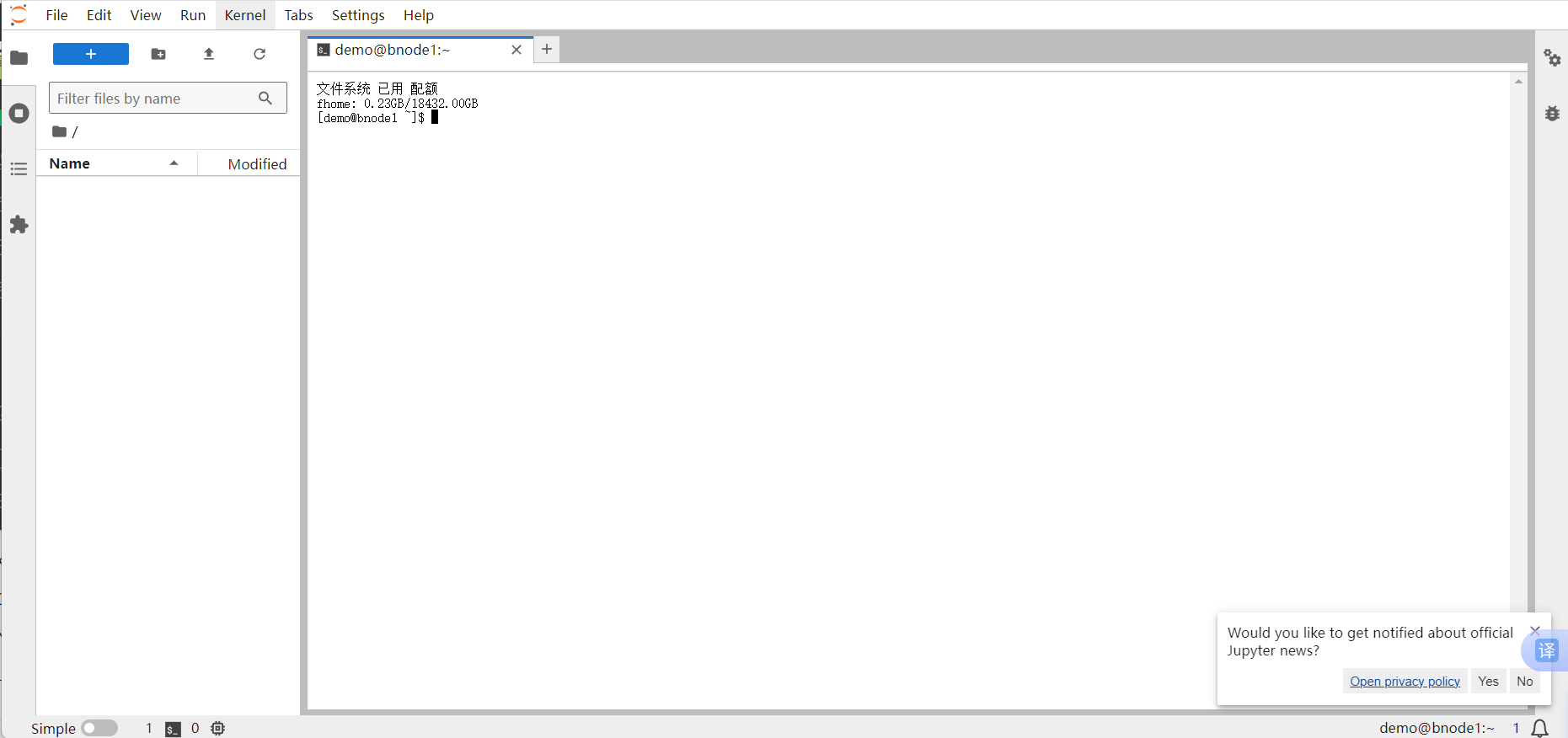
If it is unreachable, check access to the compute node and network/local port restrictions. Keep the token private.
Background operation
To run in the background and save logs:
nohup jupyter lab --no-browser --ip=0.0.0.0 --port=8888 > jupyter_lab.log 2>&1 &tail -f jupyter_lab.logFinish
Shut down running kernels, stop the JupyterLab server (Ctrl+C for a foreground process), leave the compute node, and end the salloc session or cancel its job with scancel. A background server also needs to be stopped; do not leave the allocation running after use.