
RStudio on the cluster
CHESS starts RStudio Server on a compute node. An SSH tunnel lets you use its editor, console, environment browser, plots, files, and packages in a local web browser.
Keep the job and tunnel running
The CHESS job and local SSH tunnel must both remain active. Closing the browser does not stop the job. Stop the job explicitly when finished.
Prerequisites
Your account must access CHESS and its allocated compute node. Your computer needs SSH or a client supporting port forwarding. Off-site users must connect to the VPN. Prepare a persistent working directory:
mkdir -p /hpcfs/fhome/用户名/rstudioReplace 用户名 with your username.
Add the application
Sign in to CHESS, then open Application Center (应用中心):

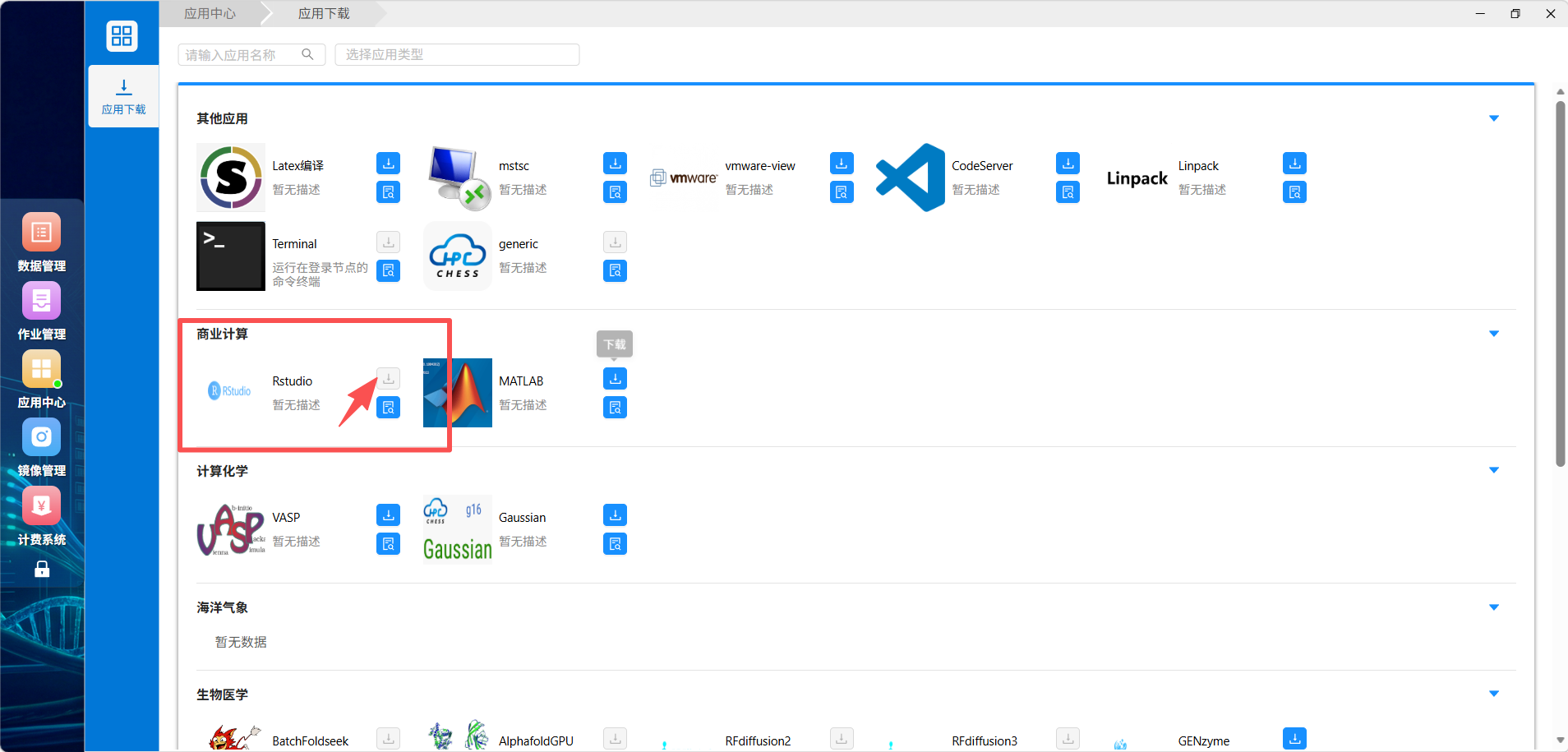
Find Rstudio in the Commercial Computing (商业计算) category of Application Download and add it to the desktop:
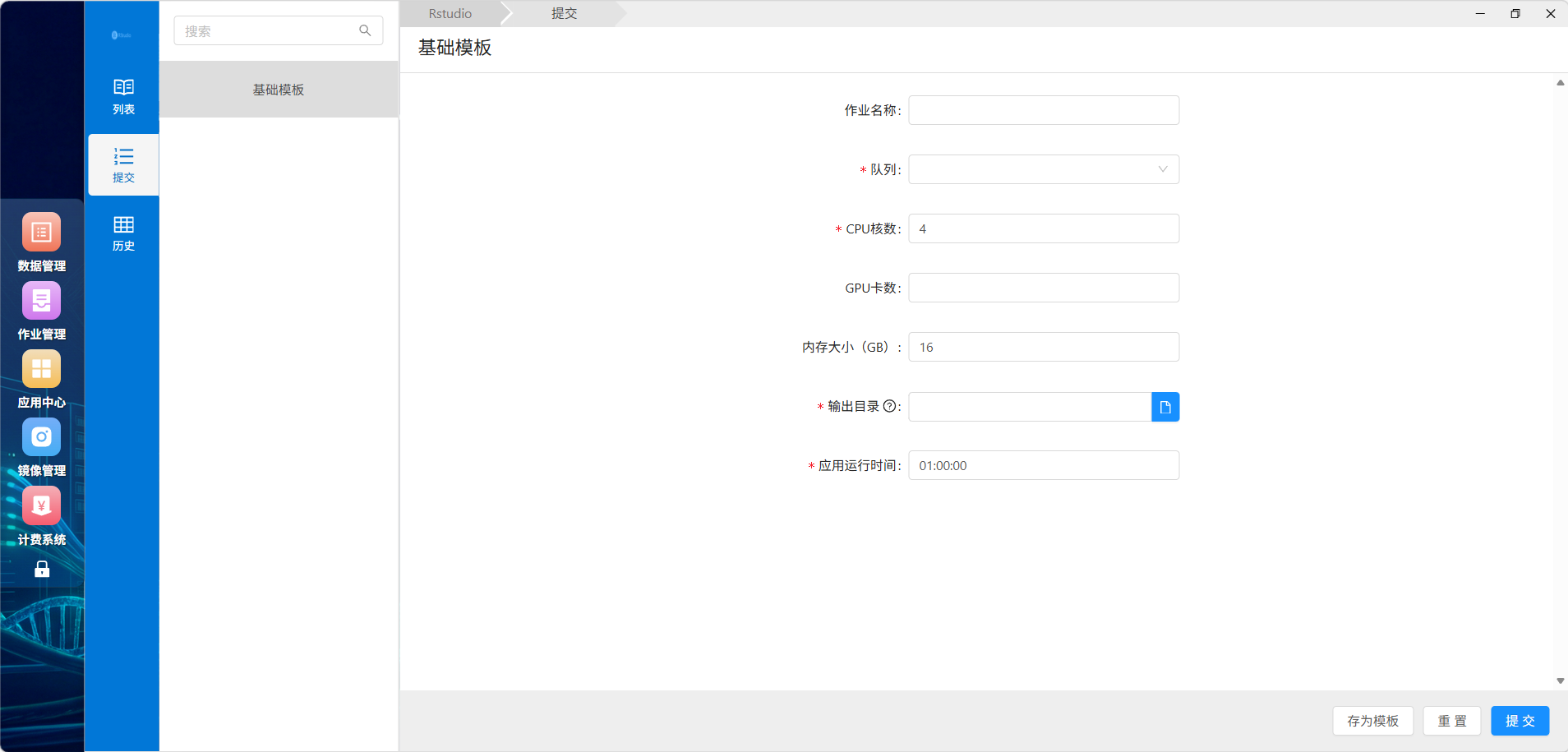
Open it and select Submit (提交):
Request resources
Choose a job name, authorized CPU partition, CPU count, memory, writable output directory, and runtime in HH:MM:SS. Ordinary R analysis generally does not require a GPU; leave that field empty or follow the form's requirements.
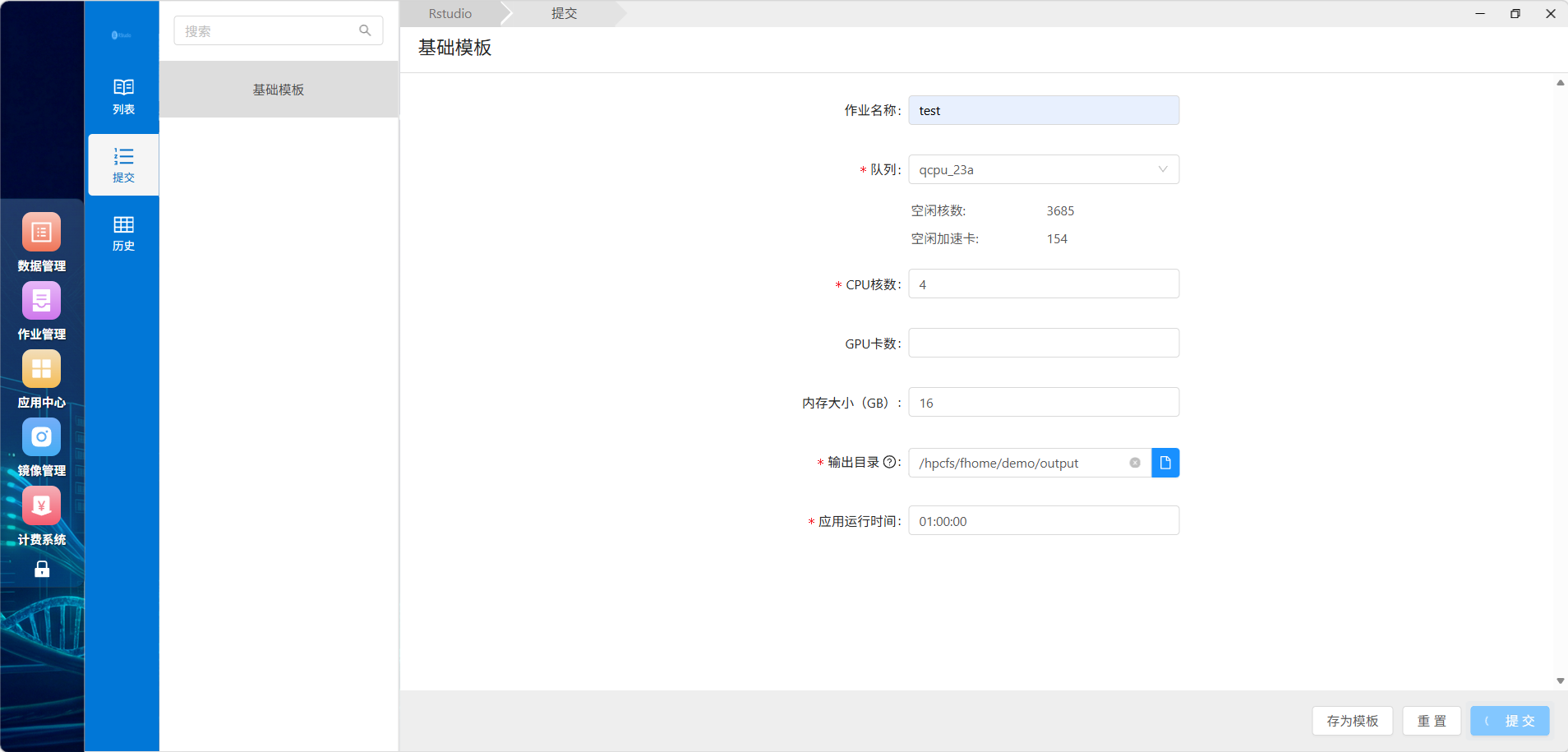
Four CPU cores and 16 GB RAM are a starting point for routine data preparation and plotting. Increase memory for larger datasets. Save regularly: Slurm ends the session at its time limit.
Obtain the node and port
Open the submitted job in List (列表) and wait for its output to show the RStudio Server node and port, for example:
RStudio Server 正在启动,运行在节点:gnode15.tibhpc.net
端口:33725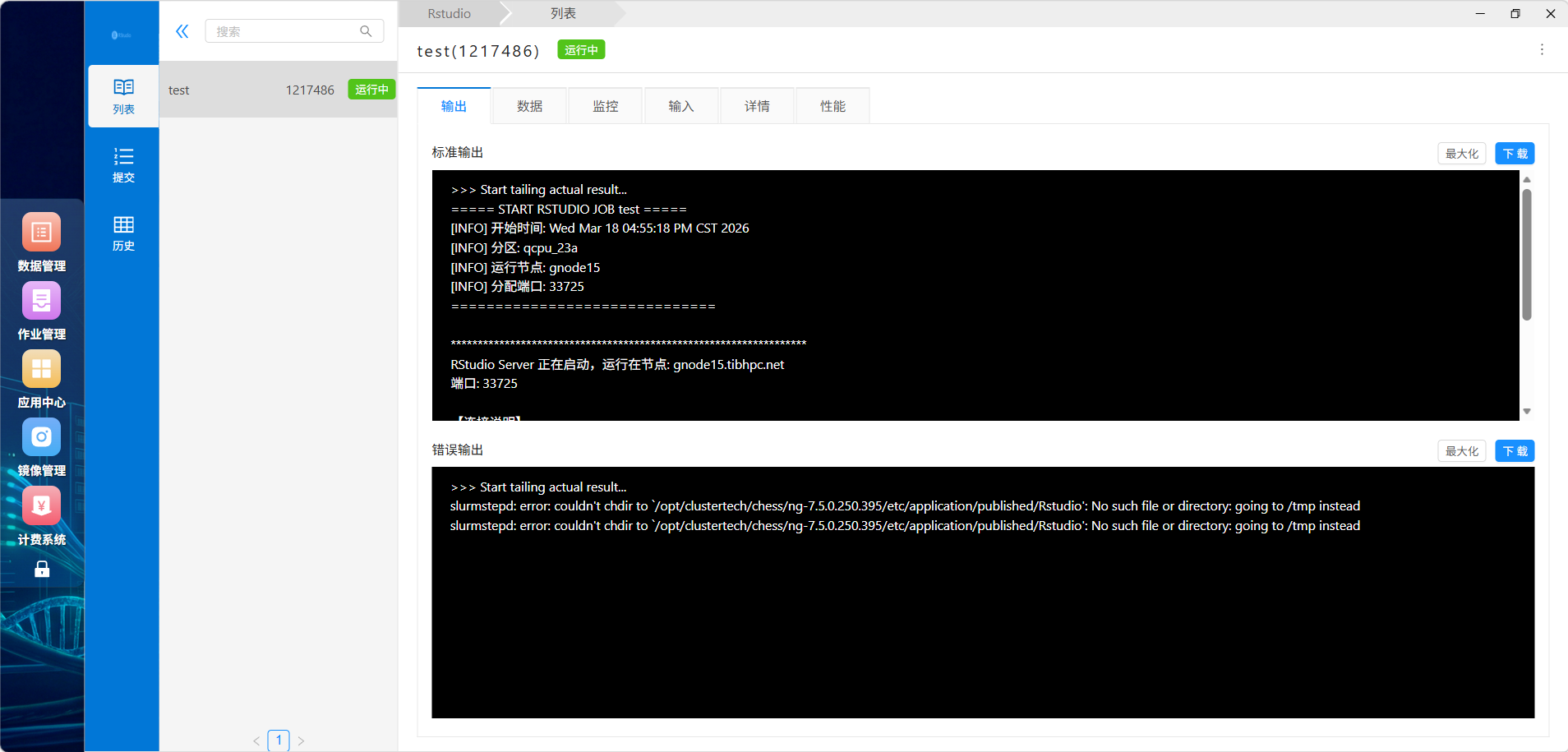
Use the values from your current job, not fixed values from the example. If the job is pending or starting, wait for the log to update.
A lone couldn't chdir ... going to /tmp instead warning may not prevent startup when a node and port have already been printed. If the service remains inaccessible, ask the administrator to check the working directory.
Create a local SSH tunnel
Run this on your own computer in PowerShell, Windows Terminal, or a macOS/Linux terminal:
ssh -L 本地端口:127.0.0.1:远程端口 用户名@运行节点The placeholders mean local port, remote port, username, and running node, respectively. Example:
ssh -L 33725:127.0.0.1:33725 demo@gnode15.tibhpc.net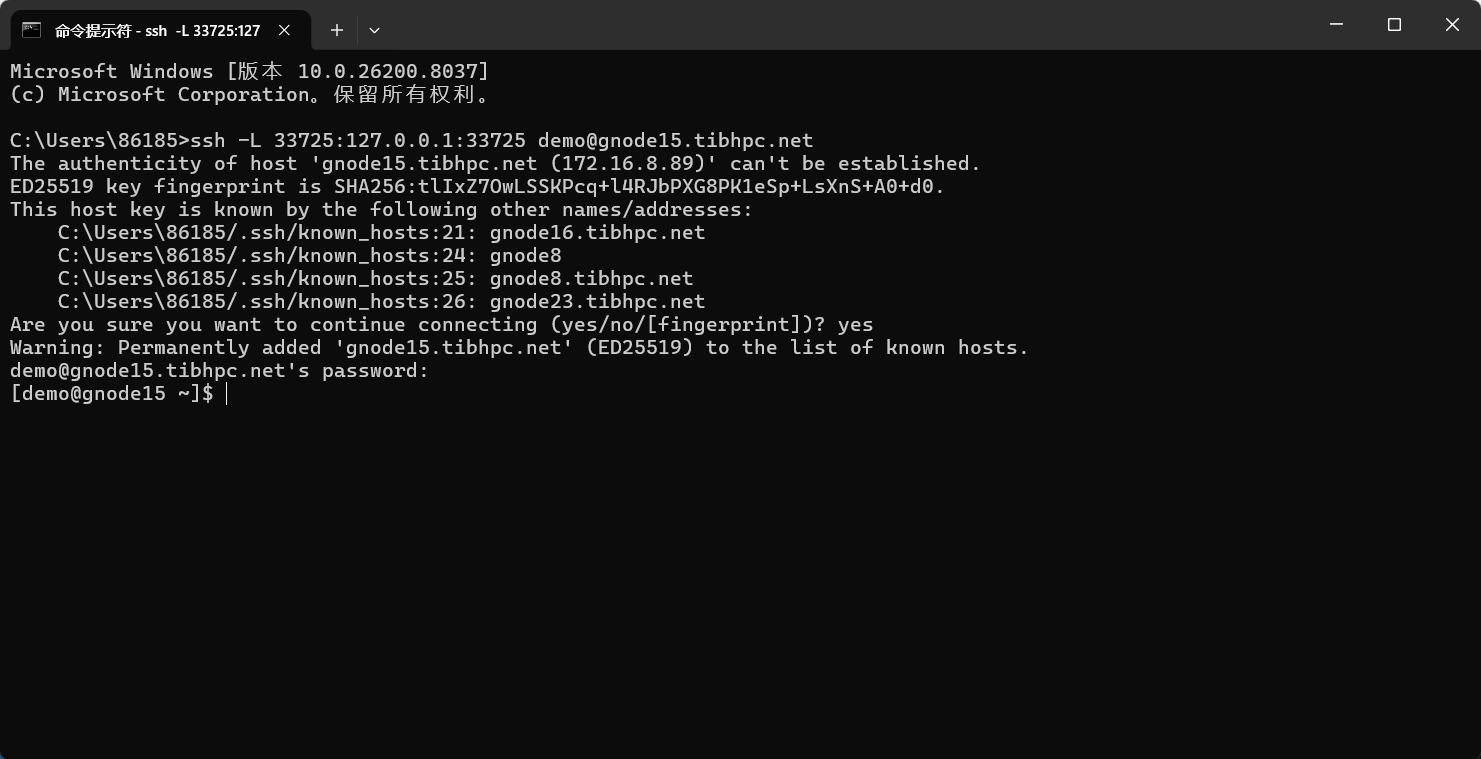
Verify the server identity on first connection, authenticate, and leave the SSH window open. If the local port is occupied, change only the left-hand port; retain the remote port printed by your job:
ssh -L 8787:127.0.0.1:33725 demo@gnode15.tibhpc.netThis example uses http://localhost:8787 in the browser.
Open RStudio
Use the local port from your tunnel:
http://localhost:本地端口With the original example's matching ports, open http://localhost:33725.
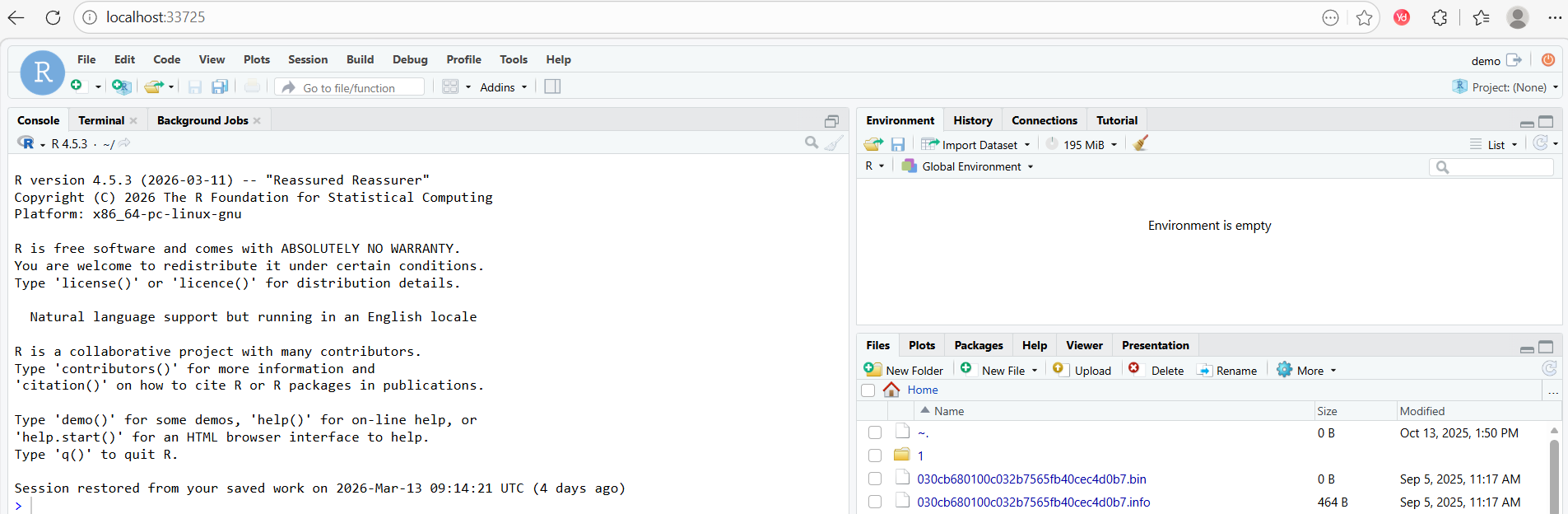
Save scripts and data to persistent personal storage rather than /tmp.
End the session
Save scripts, workspace, and results. Stop/cancel the job in CHESS and confirm it has ended. Then enter exit in the SSH terminal. Closing the browser or tunnel alone does not reliably end the Slurm allocation.
Troubleshooting
For browser failures, check the running job, live tunnel, current node/remote port, matching local browser port, and VPN. For SSH failures, check credentials and connectivity; an ended job requires a new session. If the page disconnects, inspect job state and logs for time limits, cancellation, or resource failures. Install personal R packages into persistent storage; inspect library paths with:
.libPaths()